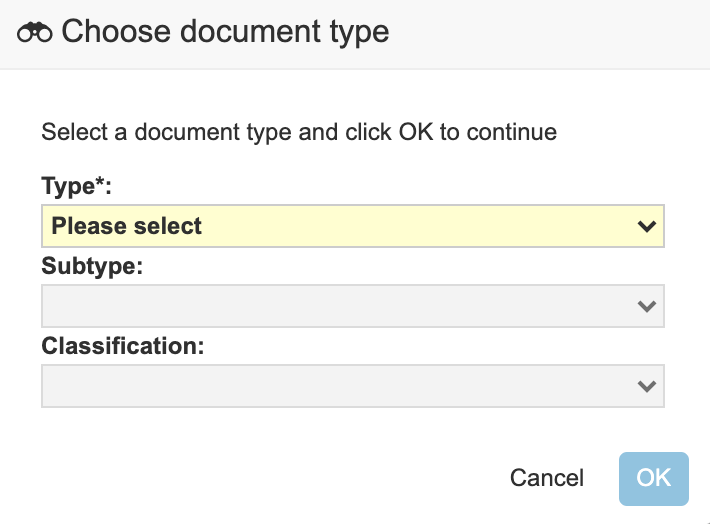
When adding any content to Vault, you can classify the document by assigning a document type, subtype, and classification.
Search-Based Document Type Selector
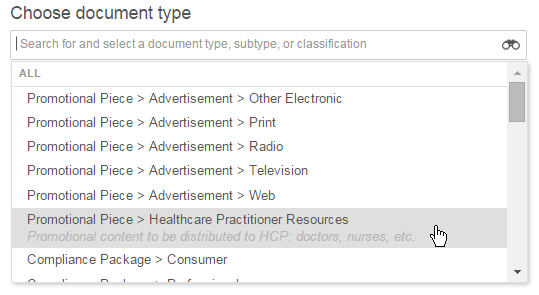
The default, search-based selector displays all document types, subtypes, and classifications in a single, searchable list. As you type in the search field, Vault narrows the list to items matching your search terms. Matches can be in the document type, subtype, or classification labels or in the document type description. The search-based selector is most effective when Admins add descriptions to document types.
You can also scroll through the list of all document types, which are displayed in the configured order.
If you want to use the hierarchy-based selector, click the binoculars icon to open it.
Hierarchy-Based Document Type Selector
If you want to use the hierarchy-based selector, click the binoculars icon. With this selector, a set of three picklists displays all document types, subtypes, and classifications. You’ll need to select a Type, and then a Subtype (if configured) and a Classification (if configured).