 ## About the 5 Whys Analysis Process {#about-process}
5 Whys Analysis consists of the following processes:
1. [Working with _Root Cause Analysis_ records][2]
1. [Creating _Root Cause Analysis_ records][5]
2. [Modifying _Root Cause Analysis_ records][6]
2. [Working with _5 Whys Root Cause Analysis_ diagrams][3]
1. [Assigning _5 Whys Analysis_ to _Root Cause Analysis_ records][7]
2. [Viewing and saving _5 Whys Root Cause Analysis_ diagrams][4]
3. [Adding _Why_ items to _5 Whys Root Cause Analysis_ diagrams][8]
4. [Editing _Why_ items in _5 Whys Root Cause Analysis_ diagrams][9]
5. [Deleting _Why_ items from _5 Whys Root Cause Analysis_ diagrams][10]
3. [Working with the _5 Whys Analysis_ workflow][11]
## Working with Root Cause Analyses {#working-with-rca}
Before you can complete a 5 Whys Analysis, you must create a root cause analysis. Root cause analyses are managed as objects within Vault. When you create the root cause analysis, Vault creates the _5 Whys Analysis_ and a blank _5 Whys Root Cause Analysis_ diagram to work with.
### How to Create Root Cause Analyses {#create-rca}
To create a _Root Cause Analysis_:
1. Navigate to the _Root Cause Analyses_ section of an existing _Quality Event_, _NCR_, _HSE Event_, or _CAR_ in the _Containment & Investigation_ lifecycle state.
2. Click **Create**.
3. Optional: Select associated objects to reference to this _Root Cause Analysis_.
4. Enter a **Problem Statement**. This is the problem you are investigating to determine the root cause.
5. Optional: Enter a **Description**.
6. Optional: Select an **Owner** for the _Root Cause Analysis_.
7. Optional: Select a **Due Date**.
8. Click **Save**. To create another _Root Cause Analysis_, click **Save + Create**.
### Modifying Root Cause Analyses {#modify-rca}
QualityOne keeps root cause analyses and their related records synchronized when you associate the _Root Cause Analysis_ with more than one (1) parent object in the following ways:
* _5 Whys Root Cause_ records generated from the _Root Cause Analysis_ update to the same values.
* Removing an object reference from a _Root Cause Analysis_ also removes the object reference from the _5 Whys Root Cause_ records generated from the same _Root Cause Analysis_.
* When syncing a root-cause _Why_ of a _Root Cause Analysis_ to _5 Whys Root Causes_, Quality object references (_Quality Event_, _NCR_, _HSE_, and _CAR_) do not need to be initially linked to a _Root Cause Analysis_ as you can update these at a later time.
## Working with 5 Whys Root Cause Analysis Diagrams {#Whys-diagrams}
After you have created the _Root Cause Analysis_ and _5 Whys Analysis_, you must assign the _5 Whys Analysis_ before you can work with the diagram. The selected assignees will be responsible for completing the analysis and sending it for approval.
### How To Assign a 5 Whys Analysis {#assign-5-whys}
1. Navigate to the appropriate _Root Cause Analysis_.
2. From the **Workflow Actions** menu, select **Assign 5 Whys Analysis**.
3. Select a _5 Whys Analysis Team Member_ from the list of suggestions, or type to narrow the list and then select a value. Include as many team members as required.
4. Select a **Quality Department** from the list of suggestions, or type to narrow the list and then select a value. Select as many users as required. This assigns a task to a _Quality Department_ user who will approve or reject the final _5 Whys Root Cause Analysis_ diagram.
5. Click **Start**.
### How to View and Save Diagrams {#view-save-diagram}
To view a _5 Whys Root Cause Analysis_ diagram:
1. Navigate to the appropriate _5 Whys Analysis_. You can view the _5 Whys Root Cause Analysis_ diagram in all lifecycle states except the _Initiated_ state.
2. From the **Actions** menu, select **View 5 Whys Analysis**.
_5 Whys Root Cause Analysis_ diagrams auto-save with the following actions:
* When you change focus away from a _Why_ item by clicking outside of the item. For example, by clicking **Add Why** or clicking into another existing _Why_ item.
* When you **Close** the diagram.
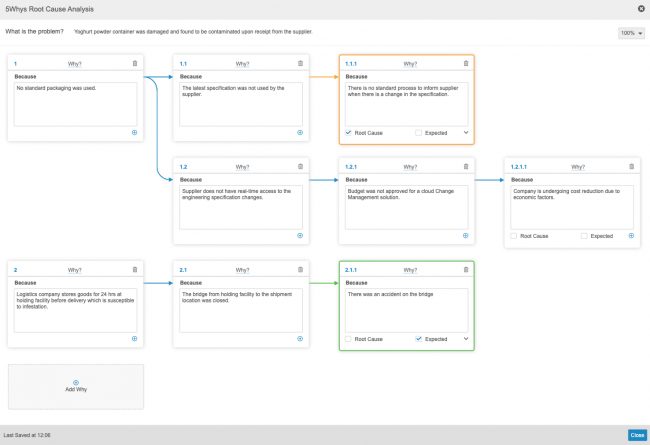
The diagram displays a last-saved timestamp in the bottom left corner of the diagram for the current user's session.
## About the 5 Whys Analysis Process {#about-process}
5 Whys Analysis consists of the following processes:
1. [Working with _Root Cause Analysis_ records][2]
1. [Creating _Root Cause Analysis_ records][5]
2. [Modifying _Root Cause Analysis_ records][6]
2. [Working with _5 Whys Root Cause Analysis_ diagrams][3]
1. [Assigning _5 Whys Analysis_ to _Root Cause Analysis_ records][7]
2. [Viewing and saving _5 Whys Root Cause Analysis_ diagrams][4]
3. [Adding _Why_ items to _5 Whys Root Cause Analysis_ diagrams][8]
4. [Editing _Why_ items in _5 Whys Root Cause Analysis_ diagrams][9]
5. [Deleting _Why_ items from _5 Whys Root Cause Analysis_ diagrams][10]
3. [Working with the _5 Whys Analysis_ workflow][11]
## Working with Root Cause Analyses {#working-with-rca}
Before you can complete a 5 Whys Analysis, you must create a root cause analysis. Root cause analyses are managed as objects within Vault. When you create the root cause analysis, Vault creates the _5 Whys Analysis_ and a blank _5 Whys Root Cause Analysis_ diagram to work with.
### How to Create Root Cause Analyses {#create-rca}
To create a _Root Cause Analysis_:
1. Navigate to the _Root Cause Analyses_ section of an existing _Quality Event_, _NCR_, _HSE Event_, or _CAR_ in the _Containment & Investigation_ lifecycle state.
2. Click **Create**.
3. Optional: Select associated objects to reference to this _Root Cause Analysis_.
4. Enter a **Problem Statement**. This is the problem you are investigating to determine the root cause.
5. Optional: Enter a **Description**.
6. Optional: Select an **Owner** for the _Root Cause Analysis_.
7. Optional: Select a **Due Date**.
8. Click **Save**. To create another _Root Cause Analysis_, click **Save + Create**.
### Modifying Root Cause Analyses {#modify-rca}
QualityOne keeps root cause analyses and their related records synchronized when you associate the _Root Cause Analysis_ with more than one (1) parent object in the following ways:
* _5 Whys Root Cause_ records generated from the _Root Cause Analysis_ update to the same values.
* Removing an object reference from a _Root Cause Analysis_ also removes the object reference from the _5 Whys Root Cause_ records generated from the same _Root Cause Analysis_.
* When syncing a root-cause _Why_ of a _Root Cause Analysis_ to _5 Whys Root Causes_, Quality object references (_Quality Event_, _NCR_, _HSE_, and _CAR_) do not need to be initially linked to a _Root Cause Analysis_ as you can update these at a later time.
## Working with 5 Whys Root Cause Analysis Diagrams {#Whys-diagrams}
After you have created the _Root Cause Analysis_ and _5 Whys Analysis_, you must assign the _5 Whys Analysis_ before you can work with the diagram. The selected assignees will be responsible for completing the analysis and sending it for approval.
### How To Assign a 5 Whys Analysis {#assign-5-whys}
1. Navigate to the appropriate _Root Cause Analysis_.
2. From the **Workflow Actions** menu, select **Assign 5 Whys Analysis**.
3. Select a _5 Whys Analysis Team Member_ from the list of suggestions, or type to narrow the list and then select a value. Include as many team members as required.
4. Select a **Quality Department** from the list of suggestions, or type to narrow the list and then select a value. Select as many users as required. This assigns a task to a _Quality Department_ user who will approve or reject the final _5 Whys Root Cause Analysis_ diagram.
5. Click **Start**.
### How to View and Save Diagrams {#view-save-diagram}
To view a _5 Whys Root Cause Analysis_ diagram:
1. Navigate to the appropriate _5 Whys Analysis_. You can view the _5 Whys Root Cause Analysis_ diagram in all lifecycle states except the _Initiated_ state.
2. From the **Actions** menu, select **View 5 Whys Analysis**.
_5 Whys Root Cause Analysis_ diagrams auto-save with the following actions:
* When you change focus away from a _Why_ item by clicking outside of the item. For example, by clicking **Add Why** or clicking into another existing _Why_ item.
* When you **Close** the diagram.
The diagram displays a last-saved timestamp in the bottom left corner of the diagram for the current user's session.
Note: In Vaults created prior to 22R1, View 5 Whys Analysis (Legacy) from the Actions menu may be displayed.
 ) icon.
3. When prompted, confirm you want to delete the _Why_ item by clicking **Continue**.
## Working with the 5 Whys Analysis Workflow {#work-with-wf}
To complete a 5 Whys Analysis, the following must happen:
1. Complete the 5 Whys Analysis task and submit it for approval.
2. The user or users assigned as the _Quality Department_ must verify and approve the _5 Whys Root Cause Analysis_ diagram. Approving a diagram closes the _Root Cause Analysis_ record. Rejecting the diagram assigns it back to the team members.
## Limitations {#limitations}
The following limitations affect the _5 Whys Root Cause Analysis_ diagram:
* Number of trees per diagram: 20
* Number of _Why_ items per tree: 20
[2]: #working-with-rca
[3]: #Whys-diagrams
[4]: #view-save-diagram
[5]: #create-rca
[6]: #modify-rca
[7]: #assign-5-whys
[8]: #add-why-items
[9]: #edit-why-items
[10]: #delete-why-items
[11]: #work-with-wf
) icon.
3. When prompted, confirm you want to delete the _Why_ item by clicking **Continue**.
## Working with the 5 Whys Analysis Workflow {#work-with-wf}
To complete a 5 Whys Analysis, the following must happen:
1. Complete the 5 Whys Analysis task and submit it for approval.
2. The user or users assigned as the _Quality Department_ must verify and approve the _5 Whys Root Cause Analysis_ diagram. Approving a diagram closes the _Root Cause Analysis_ record. Rejecting the diagram assigns it back to the team members.
## Limitations {#limitations}
The following limitations affect the _5 Whys Root Cause Analysis_ diagram:
* Number of trees per diagram: 20
* Number of _Why_ items per tree: 20
[2]: #working-with-rca
[3]: #Whys-diagrams
[4]: #view-save-diagram
[5]: #create-rca
[6]: #modify-rca
[7]: #assign-5-whys
[8]: #add-why-items
[9]: #edit-why-items
[10]: #delete-why-items
[11]: #work-with-wf