# Using Object-Level Comments (QMS)
QualityOne Vaults
allow you to communicate and collaborate on object records. Your Admin can configure comments on any QualityOne QMS object in your Vault which also provides user mention functionality. Comments allow collaboration between the following types of users:
* Internal user to external user
* External user to internal user
* Internal user to internal user
User mentions allow you to tag specific users in a comment to let those users collaborate more efficiently. User mentions trigger a notification to the mentioned users in the _Comment_ record. You must mention at least one (1) user within a comment. Depending on your permissions, role, and your Admin's configuration
, you can view, create, edit, and delete _Comment_ records. User mentions in object comments are not included in Vault Summary Emails
, if configured.
Depending on your Admin's configuration
, object, field, and section labels may appear differently than the labels mentioned in this article.
## User Types {#user-types}
User types define how you can interact with other users as a comment creator and receiver. Your Admin determines your type of user. There are two (2) user types for comments:
* **Internal User**: Users within your organization
* **External User**: Users outside of your organization, such as a supplier and manufacturer
## How to Create Comments {#create-comments}
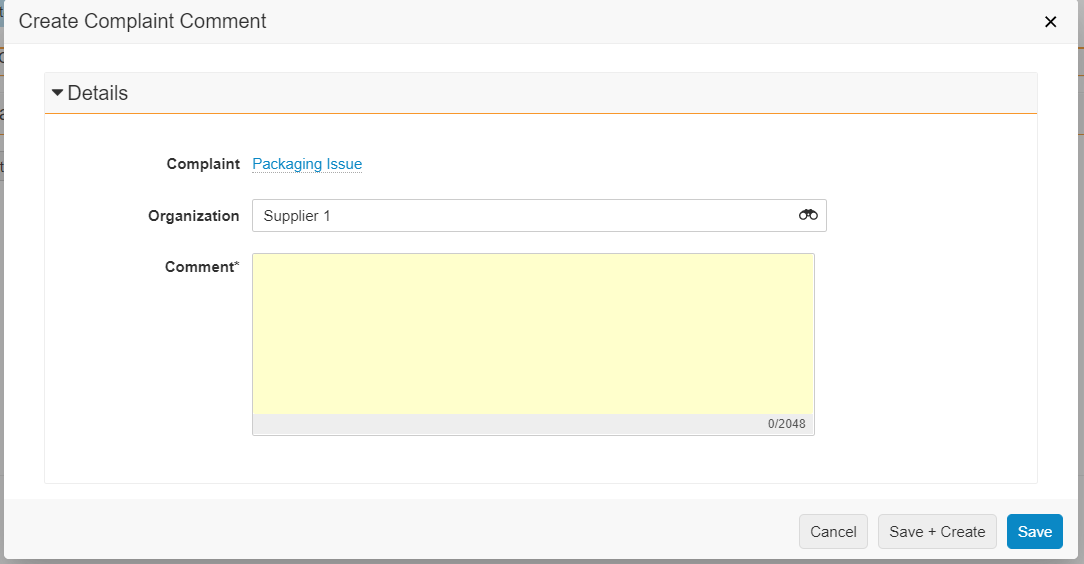
To comment on an object record:
1. Navigate to the appropriate object record detail page and click **Create** in the comment section.
2. For internal users, select the internal or external **Organization** for which you want to create a comment. For external users, this field is not available.
3. Enter relevant details in the **Comment** field.
4. Enter "**@**" or "**+**" followed by the name of the user you want to mention in the comment. You must mention at least one (1) user from the specified _Organization_.
5. Click **Save** or to create another comment, click **Save + Create**.
 ## How to Edit or Delete Comments {#edit-delete-comments}
Depending on your permissions, you may be able to edit or delete comments. You can edit and delete only your own comments.
To edit your comment record:
1. Navigate to the comment section on the appropriate object record detail page.
2. From the appropriate record's grid item **Actions** menu, click **Edit**.
3. Make the appropriate changes in the text area and click **Save**.
To delete your comment record:
1. Navigate to the comment section on the appropriate object record detail page.
2. From the appropriate record's grid item **Actions** menu, click **Delete**.
3. Click **Continue**.
Editing _Comment_ records by making changes to the **Comment** body notifies all users mentioned. While mentioning a new user in the **Comment** body sends a notification to all users mentioned, deleting one (1) or many mentioned users only sends a notification to the remaining users mentioned.
## Viewing Comments {#view-comments}
There are two (2) ways to view comments outside of the _Comment_ records of which you are mentioned on: in-application and email notification. All users mentioned in a comment receive both types of notifications.
In the notification, a link directs you to the object record detail page. Only the email notification contains the entire _Comment_ body.
## Limitations {#limitations}
The following limitations affect object-level comments:
* Internal users can view all _Comment_ records with the appropriate view permissions.
* External users can only see _Comment_ records created by their own organization and comments addressed to their own organization from internal users.
## How to Edit or Delete Comments {#edit-delete-comments}
Depending on your permissions, you may be able to edit or delete comments. You can edit and delete only your own comments.
To edit your comment record:
1. Navigate to the comment section on the appropriate object record detail page.
2. From the appropriate record's grid item **Actions** menu, click **Edit**.
3. Make the appropriate changes in the text area and click **Save**.
To delete your comment record:
1. Navigate to the comment section on the appropriate object record detail page.
2. From the appropriate record's grid item **Actions** menu, click **Delete**.
3. Click **Continue**.
Editing _Comment_ records by making changes to the **Comment** body notifies all users mentioned. While mentioning a new user in the **Comment** body sends a notification to all users mentioned, deleting one (1) or many mentioned users only sends a notification to the remaining users mentioned.
## Viewing Comments {#view-comments}
There are two (2) ways to view comments outside of the _Comment_ records of which you are mentioned on: in-application and email notification. All users mentioned in a comment receive both types of notifications.
In the notification, a link directs you to the object record detail page. Only the email notification contains the entire _Comment_ body.
## Limitations {#limitations}
The following limitations affect object-level comments:
* Internal users can view all _Comment_ records with the appropriate view permissions.
* External users can only see _Comment_ records created by their own organization and comments addressed to their own organization from internal users.