 ## About Related Record Setup {#about}
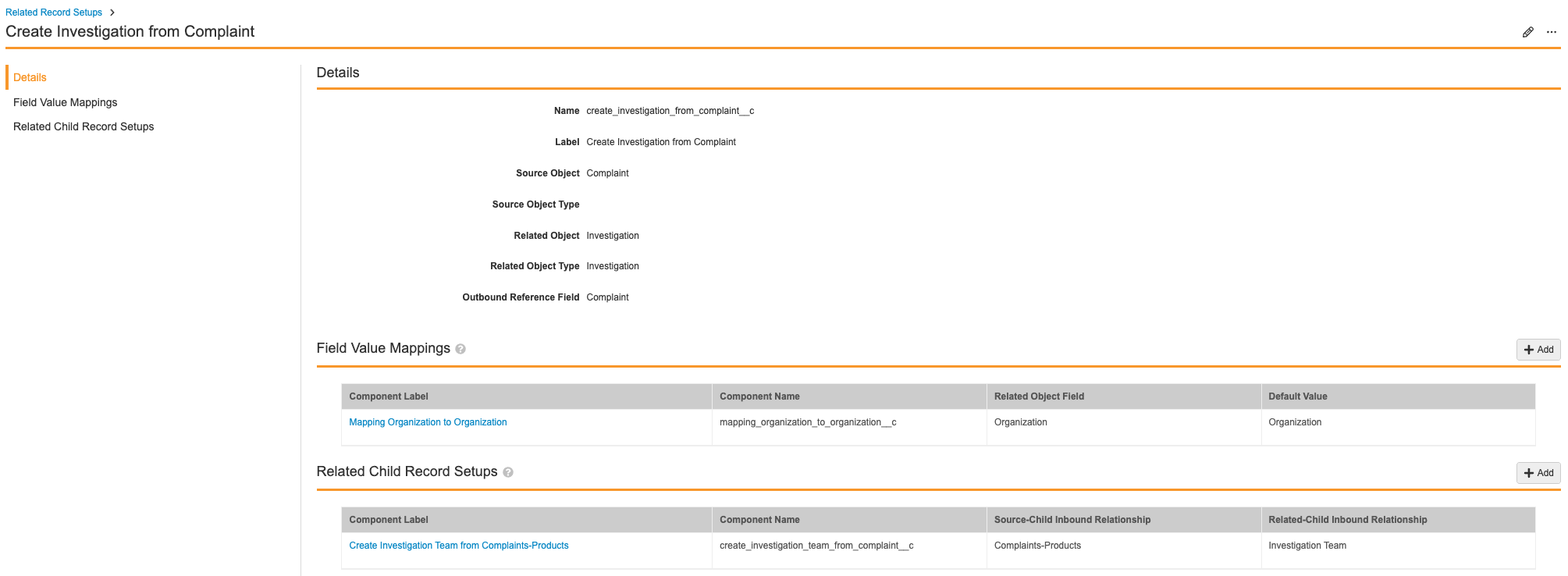
Vault can relate a newly created record to a source record if you associate a source object with another object, the related object. You can map the source object field values to the related object field values when you have set up the related records. You can also associate a source-child object (inbound relationship) with a related-child object (inbound relationship) and map their field values. Before [incorporating entry actions][1] into your source object lifecycles, you must set up the relationship between your source object and related object.
### Object Relationship {#object-relationship}
A _Source Object_ is an object from which you want to source values, which you can do by associating it to a _Related Object_. A _Related Object_ is the object that you want to automatically generate a new record for when a particular object lifecycle state of the source object is met, with the values sourced from the source object automatically populated on the record. You can configure specific _Source Object Types_ and _Related Object Types_ when it is applicable.
#### Related Child Records {#related-child-records}
When creating a relation between two (2) parent objects (_Source Object_ and _Related Object_), you can associate the corresponding child objects for automated child record generation. You can do this by configuring a source object's child object (the _Source-Child Inbound Relationship_) and a related object's child object (the _Related-Child Inbound Relationship_).
### Field Value Mapping {#field-value-mapping}
When creating a relation between two (2) objects or two (2) child objects, you can map multiple field values between the two (2) objects. The generated related record and related-child record will contain the same field values copied from the source record and source-child record. You can map field values between each other only when the data type matches, for example:
* _Number_ type to _Number_ type
* _Text_ type to _Text_ type
* _Long Text_ type to _Long Text_ type
* _Date_ type to _Date_ type
* Object reference fields to object reference fields
* Picklist to picklist (so long as both lists contain the same list values)
You can map to an object reference's field (second-level) within the source object's configuration. For example, the _Source Object NCR_ and its object reference _Defect Category_ would have a _Description_ field showing a _Default Value_ of "Defect Category > Description" to map to.
### Example Use Cases {#example-use-cases}
There are different potential example use cases for using Related Record Setup:
* **Use Case 1**: Automatically create an _Effectiveness Check_ record when all _Action Items_ are completed and an _NCR_ record enters into the _Effectiveness Check_ _Lifecycle_ state.
* Example _Source Object_ is _NCR_ and the _Related Object_ is _Effectiveness Check_.
* Example field value to map is the _Result_ field on the _Effectiveness Check_ object to the _Investigation Summary and Conclusion_ field on the _NCR_ object.
* **Use Case 2**: Automatically create an _NCR_ record with information from a _Complaint_ record when the nonconformance is required and automatically create an _NCR-Product_ child record with information from a _Complaint-Product_ child record.
* Example _Source Object_ is _Complaint_ and the _Related Object_ is _NCR_. Example _Source-Child Inbound Relationship_ is _Complaint-Product_ and the _Related-Child Inbound Relationship_ is _NCR-Product_.
* Example field value to map is the _Complaint Summary_ field on the _Compliant_ object to the _Defect Description_ field on the _NCR_ object. Example child field value to map is the _Product_ field on the _Complaint-Product_ child object to the _Product_ field on the _NCR-Product_ child object.
* **Use Case 3**: Automatically create a _Supplier NCR_ record if the COA Analysis fails and supplied material is outside of its tolerances (USL and LSL).
* Example _Source Object_ is _Inspection_ and the _Related Object_ is _NCR_.
* Example field value to map is the _Purchase Order_ field on the _Inspection_ object to the _Purchase Order_ field on the _NCR_ object.
* **Use Case 4**: Automatically create an _Inspection_ record when the _Purchase Order Line Item_ record is created.
* Example _Source Object_ is _Inspection_ with _Source Object Type_ as _Incoming Inspection_ and the _Related Object_ is _Purchase Order Line Item_.
* Example field values to map are:
* The _Purchase Order_ field on the _Purchase Order Line Item_ object to the _Purchase Order_ field on the _Incoming Inspection_ object type;
* The _Supplier_ field on the _Purchase Order Line Item_ object to the _Supplier Name_ field on the _Incoming Inspection_ object type.
## Setup Overview {#overview}
Setting up your Vault to use Related Record Setup involves the following steps:
* [Activate the _Related Record Setup_ pages][2]
* [Set up a related record component and a related child record component][3]
* [Configure field value mappings for the related record component and the related child record component][4]
* [Configure the _Create Related Record_ action on the source object and its lifecycle][1]
## About Related Record Setup {#about}
Vault can relate a newly created record to a source record if you associate a source object with another object, the related object. You can map the source object field values to the related object field values when you have set up the related records. You can also associate a source-child object (inbound relationship) with a related-child object (inbound relationship) and map their field values. Before [incorporating entry actions][1] into your source object lifecycles, you must set up the relationship between your source object and related object.
### Object Relationship {#object-relationship}
A _Source Object_ is an object from which you want to source values, which you can do by associating it to a _Related Object_. A _Related Object_ is the object that you want to automatically generate a new record for when a particular object lifecycle state of the source object is met, with the values sourced from the source object automatically populated on the record. You can configure specific _Source Object Types_ and _Related Object Types_ when it is applicable.
#### Related Child Records {#related-child-records}
When creating a relation between two (2) parent objects (_Source Object_ and _Related Object_), you can associate the corresponding child objects for automated child record generation. You can do this by configuring a source object's child object (the _Source-Child Inbound Relationship_) and a related object's child object (the _Related-Child Inbound Relationship_).
### Field Value Mapping {#field-value-mapping}
When creating a relation between two (2) objects or two (2) child objects, you can map multiple field values between the two (2) objects. The generated related record and related-child record will contain the same field values copied from the source record and source-child record. You can map field values between each other only when the data type matches, for example:
* _Number_ type to _Number_ type
* _Text_ type to _Text_ type
* _Long Text_ type to _Long Text_ type
* _Date_ type to _Date_ type
* Object reference fields to object reference fields
* Picklist to picklist (so long as both lists contain the same list values)
You can map to an object reference's field (second-level) within the source object's configuration. For example, the _Source Object NCR_ and its object reference _Defect Category_ would have a _Description_ field showing a _Default Value_ of "Defect Category > Description" to map to.
### Example Use Cases {#example-use-cases}
There are different potential example use cases for using Related Record Setup:
* **Use Case 1**: Automatically create an _Effectiveness Check_ record when all _Action Items_ are completed and an _NCR_ record enters into the _Effectiveness Check_ _Lifecycle_ state.
* Example _Source Object_ is _NCR_ and the _Related Object_ is _Effectiveness Check_.
* Example field value to map is the _Result_ field on the _Effectiveness Check_ object to the _Investigation Summary and Conclusion_ field on the _NCR_ object.
* **Use Case 2**: Automatically create an _NCR_ record with information from a _Complaint_ record when the nonconformance is required and automatically create an _NCR-Product_ child record with information from a _Complaint-Product_ child record.
* Example _Source Object_ is _Complaint_ and the _Related Object_ is _NCR_. Example _Source-Child Inbound Relationship_ is _Complaint-Product_ and the _Related-Child Inbound Relationship_ is _NCR-Product_.
* Example field value to map is the _Complaint Summary_ field on the _Compliant_ object to the _Defect Description_ field on the _NCR_ object. Example child field value to map is the _Product_ field on the _Complaint-Product_ child object to the _Product_ field on the _NCR-Product_ child object.
* **Use Case 3**: Automatically create a _Supplier NCR_ record if the COA Analysis fails and supplied material is outside of its tolerances (USL and LSL).
* Example _Source Object_ is _Inspection_ and the _Related Object_ is _NCR_.
* Example field value to map is the _Purchase Order_ field on the _Inspection_ object to the _Purchase Order_ field on the _NCR_ object.
* **Use Case 4**: Automatically create an _Inspection_ record when the _Purchase Order Line Item_ record is created.
* Example _Source Object_ is _Inspection_ with _Source Object Type_ as _Incoming Inspection_ and the _Related Object_ is _Purchase Order Line Item_.
* Example field values to map are:
* The _Purchase Order_ field on the _Purchase Order Line Item_ object to the _Purchase Order_ field on the _Incoming Inspection_ object type;
* The _Supplier_ field on the _Purchase Order Line Item_ object to the _Supplier Name_ field on the _Incoming Inspection_ object type.
## Setup Overview {#overview}
Setting up your Vault to use Related Record Setup involves the following steps:
* [Activate the _Related Record Setup_ pages][2]
* [Set up a related record component and a related child record component][3]
* [Configure field value mappings for the related record component and the related child record component][4]
* [Configure the _Create Related Record_ action on the source object and its lifecycle][1]
Note: Depending on your Vault’s creation date and which features are currently enabled and configured, some of the steps described in this article may be unavailable or already complete in your Vault.
Note: The behavior described above for success and failure notifications is dependent on enabling an optional but recommended feature available in 25R1. Contact your Veeva Representative to enable this feature.
| Type | Permission | Controls |
|---|---|---|
| Security Profile | Objects: [Source Object]: Read, Create, Edit | Ability to view, create, and modify Vault objects used as a source object. |
| Security Profile | Objects: [Related Object]: Read, Create, Edit | Ability to view, create, and modify Vault objects used as a related object. |
| Security Profile | Pages: All Related Record Setups: View | Ability to view all Related Record Setup pages: needed to view Field Value Mapping Setup and Related Record Setup pages. |
| Security Profile | Pages: Field Mapping: View | Ability to view Field Mapping page within the Related Child Record Setup page. |
| Security Profile | Pages: Field Value Mapping Setup: View | Ability to view Field Value Mapping Setup page. |
| Security Profile | Pages: Related Child Record Setup: View | Ability to view Related Child Record Setup page. |
| Security Profile | Pages: Related Record Setup: View | Ability to view Related Record Setup page. |