Note: Depending on your Vault’s creation date and which features are currently enabled and configured, some of the steps described in this article may be unavailable or already complete in your Vault.
Note: You cannot configure translated master data from the Material object to display in Details sections.
 ) icon.
5. In the _Add Translated Field_ dialog, select the **Field to Translate**. Object reference fields configured on the target object that refer to translation companion objects are available to select.
6. Click **Save**.
## Configuring Translated Master Data to Display in Related Object Sections {#related-object-section}
You can display translated data from [standard](/en/lr/771989/#translate) and [custom][4] master data objects in fields on related object sections on _HACCP Plan_, _Process Hazard Analysis_, and _Ingredient Hazard Analysis_ records. This requires configuring _HACCP App Controls for Related Section_ component records. When configured, translated master data displays in a column of the related object section. You must create a _HACCP App Controls for Related Section_ record for each related object section that displays translated master data.
) icon.
5. In the _Add Translated Field_ dialog, select the **Field to Translate**. Object reference fields configured on the target object that refer to translation companion objects are available to select.
6. Click **Save**.
## Configuring Translated Master Data to Display in Related Object Sections {#related-object-section}
You can display translated data from [standard](/en/lr/771989/#translate) and [custom][4] master data objects in fields on related object sections on _HACCP Plan_, _Process Hazard Analysis_, and _Ingredient Hazard Analysis_ records. This requires configuring _HACCP App Controls for Related Section_ component records. When configured, translated master data displays in a column of the related object section. You must create a _HACCP App Controls for Related Section_ record for each related object section that displays translated master data.
Note: Translated master data from the Material object can only be configured to display in the HACCP Plan Materials control section on HACCP Plans. See Configuring the HACCP Plan Materials Section to Display Translated Data for more details.
) icon into the _HACCP Plan_ [layout](/en/lr/26387/#how-to-access-page-layouts).
2. [Add](/en/lr/26387/#how-to-edit-related-object-columns) the _Material Translation_ field as a default column in the layout to display the translated _Material ID_ (`name__v`) field value with a link to the translated record.
3. Optional: To display translated values for standard picklist fields on the _Material_ object:
1. Create [_Lookup_ fields](/en/lr/28740/#How_to_Add_Lookup_Fields) on the _HACCP Plan - Material_ object that reference _Material_ object standard picklist fields. With this configuration, the values of standard picklist fields on the _Material_ object, such as _Product Hierarchy Type_, are automatically translated into the user's language.
2. [Add](/en/lr/26387/#how-to-edit-related-object-columns) the fields you created as default columns in the _HACCP Plan Materials_ section.
4. Optional: To display translated values for text fields on the _Material_ object:
1. Create [_Lookup_ fields](/en/lr/28740/#How_to_Add_Lookup_Fields) or [_Formula_ fields](/en/lr/44478/) on the _HACCP Plan - Material_ object that reference text fields on the _Material Translation_ object. We recommend _Lookup_ fields for simple configurations that directly display the field value, and _Formula_ fields for complex configurations requiring flexibility to add parameters. As a simple example, a base _Formula_ field to display the translated _Title_ field can have the following expression: `material_translation__vr.title__v`
2. [Add](/en/lr/26387/#how-to-edit-related-object-columns) the fields you created as default columns in the _HACCP Plan Materials_ section.
When users add materials to a _HACCP Plan_ from the _HACCP Plan Materials_ section, the record selection dialog displays translated records in the same language as the target _HACCP Plan_.
## Displaying Translated Master Data on the HACCP Flow Diagram {#hfd}
Vault automatically displays available translated field data for all [standard master data objects](/en/lr/771989/#translate) and any [configured custom master data objects][4] on the HACCP Flow Diagram's canvas, _Information_ panel, and record selection dialogs.
## Configuring Translated Reference Constraints {#field-criteria}
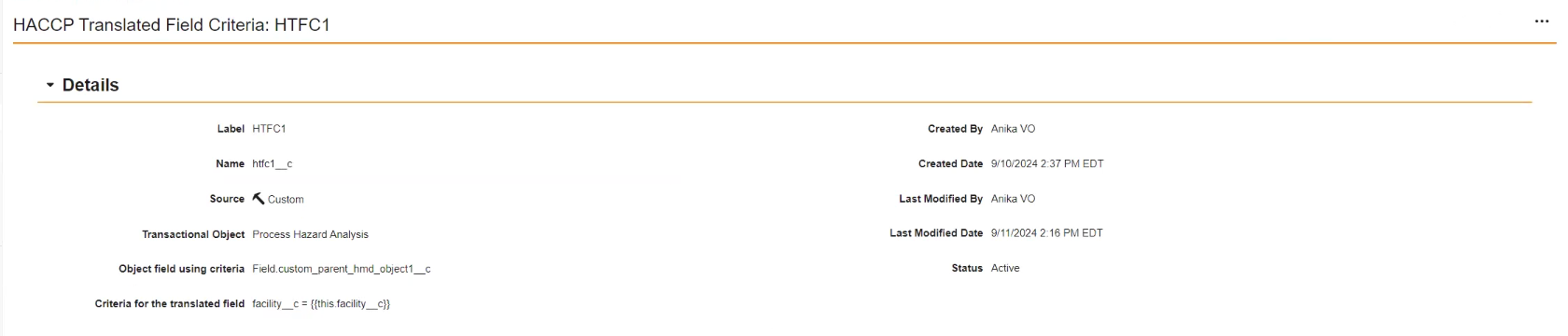
If you have [reference constraints](/en/lr/75340/) configured on transactional objects to filter the related master data records that users can select, you must create _HACCP Translated Field Criteria_ records to ensure Vault filters the translated records properly.
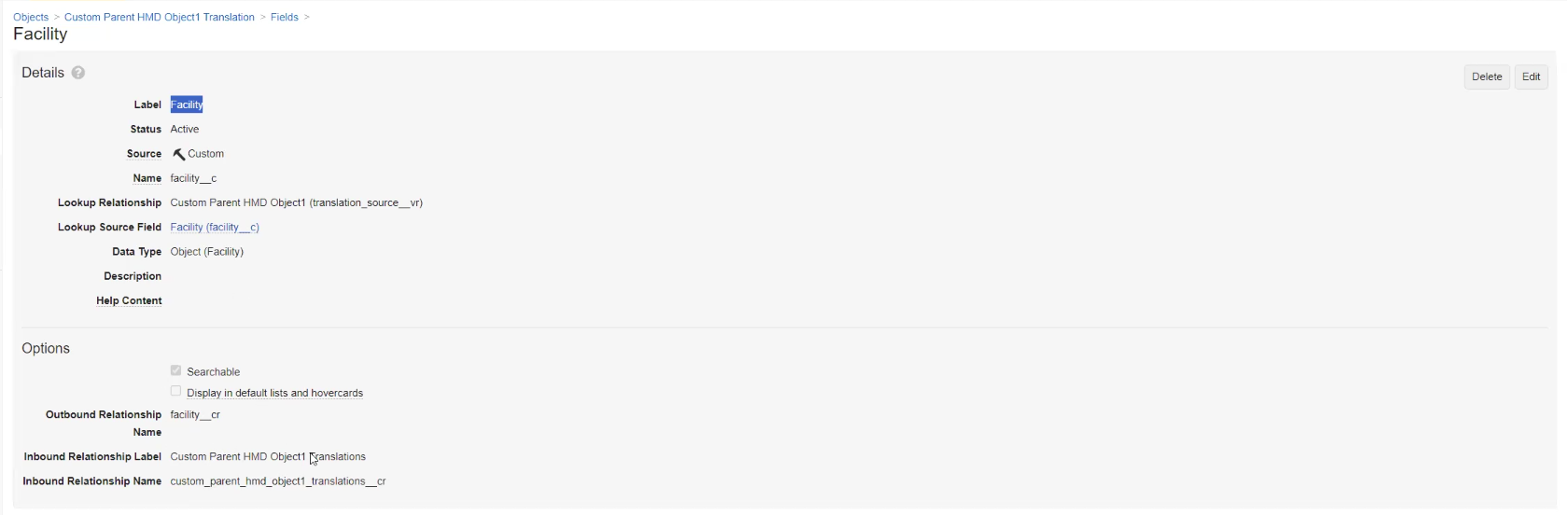
Before creating a _HACCP Translated Field Criteria_ record, you must add a [_Lookup_ field](/en/lr/34072/) to the target translation companion object referencing the object relationship and field that the criteria VQL uses.
To ensure Vault can filter translated records properly, review the [limitations on criteria VQL][11] before you begin.
To create _HACCP Translated Field Criteria_:
1. Navigate to **Admin > Configuration > Application Configurations > Component Setup > HACCP Translated Field Criteria**.
2. Click **Create**.
3. Enter a **Name**.
4. Select a **Transactional Object**.
5. Enter the **Object field using criteria** in the following format: `Field.[object_field_name__v]`. For example, `Field.facility__v`. This must be a field on the object for which you are creating the related object section and its translation companion object.
6. Enter the **Criteria for the translated field**.
7. Click **Save**.
 ### Limitations on Translated Criteria VQL {#vql-limitations}
In addition to the [Platform-level limitations](/en/lr/75340/#limitations) affecting static and dynamic reference constraints, the following limitations apply to criteria VQL in reference constraints for translated records:
* You can configure criteria VQL only on object reference fields. Document reference fields are not supported.
* Only object reference fields and single-value picklist fields are supported as controlling fields in dynamic reference constraints.
* [Tokens](/en/lr/6382/) in criteria VQL statements must be in one of the following formats:
* `{{this.field_name}}`
* `{{this.relationship_name.field_name}}`
* `{{this.object_type_name__vr.field_name__v}}`
* [Functions](/en/lr/52324/) are not supported. For instance, the following function is not supported: `{{IN_LAST(numberOfDays)}`
## Configuring User Permissions {#permissions}
To use HACCP Plan Translation, users must have a security profile with a permission set that grants the following permissions:
* All [standard HACCP permissions](/en/lr/492247/#user-permission).
* _Edit_ permission for the _HACCP Translation Generation_ object.
* _Create_, _Edit_, and _Delete_ permissions on all [standard][14] and [custom][4] master data objects and their corresponding translation companion objects.
* _Create_, _Edit_, and _Delete_ permissions for all [transactional objects][5] included in the HACCP copy actions.
* _Edit_ permission for translatable fields and object reference fields on HACCP transactional objects.
* _Execute_ permission on the _HACCP Plan_ object for the following object actions:
* _Export Translatable Fields_
* _Generate Translation Copy_
* _Import Translatable Fields_
* To view translated field data in _Details_ sections, users must have _View_ permission for the _Translated Field_ object control on the following objects:
* _CCP-Hazard Analysis_
* _HACCP Hazard Control_
* _HACCP Plan Process Step_
* _Process Hazard Analysis_
* To add and display translated _Materials_ on a _HACCP Plan_, users must have the following permissions:
* _View_ permission for the _HACCP Plan Materials_ object control on the _HACCP Plan_ object
* _Read_ permission on the _HACCP Plan Material_ object
[1]: #terminology
[2]: #objects
[3]: #user-actions
[4]: #define-custom-objects
[5]: #copy-custom-objects
[6]: #details-section
[7]: #related-object-section
[8]: #hfd
[9]: #field-criteria
[10]: #permissions
[11]: #vql-limitations
[12]: #master-data-layouts
[13]: #materials-section
[14]: #standard-md
### Limitations on Translated Criteria VQL {#vql-limitations}
In addition to the [Platform-level limitations](/en/lr/75340/#limitations) affecting static and dynamic reference constraints, the following limitations apply to criteria VQL in reference constraints for translated records:
* You can configure criteria VQL only on object reference fields. Document reference fields are not supported.
* Only object reference fields and single-value picklist fields are supported as controlling fields in dynamic reference constraints.
* [Tokens](/en/lr/6382/) in criteria VQL statements must be in one of the following formats:
* `{{this.field_name}}`
* `{{this.relationship_name.field_name}}`
* `{{this.object_type_name__vr.field_name__v}}`
* [Functions](/en/lr/52324/) are not supported. For instance, the following function is not supported: `{{IN_LAST(numberOfDays)}`
## Configuring User Permissions {#permissions}
To use HACCP Plan Translation, users must have a security profile with a permission set that grants the following permissions:
* All [standard HACCP permissions](/en/lr/492247/#user-permission).
* _Edit_ permission for the _HACCP Translation Generation_ object.
* _Create_, _Edit_, and _Delete_ permissions on all [standard][14] and [custom][4] master data objects and their corresponding translation companion objects.
* _Create_, _Edit_, and _Delete_ permissions for all [transactional objects][5] included in the HACCP copy actions.
* _Edit_ permission for translatable fields and object reference fields on HACCP transactional objects.
* _Execute_ permission on the _HACCP Plan_ object for the following object actions:
* _Export Translatable Fields_
* _Generate Translation Copy_
* _Import Translatable Fields_
* To view translated field data in _Details_ sections, users must have _View_ permission for the _Translated Field_ object control on the following objects:
* _CCP-Hazard Analysis_
* _HACCP Hazard Control_
* _HACCP Plan Process Step_
* _Process Hazard Analysis_
* To add and display translated _Materials_ on a _HACCP Plan_, users must have the following permissions:
* _View_ permission for the _HACCP Plan Materials_ object control on the _HACCP Plan_ object
* _Read_ permission on the _HACCP Plan Material_ object
[1]: #terminology
[2]: #objects
[3]: #user-actions
[4]: #define-custom-objects
[5]: #copy-custom-objects
[6]: #details-section
[7]: #related-object-section
[8]: #hfd
[9]: #field-criteria
[10]: #permissions
[11]: #vql-limitations
[12]: #master-data-layouts
[13]: #materials-section
[14]: #standard-md