# Working with Audit Report Printable View (HSE, QMS)
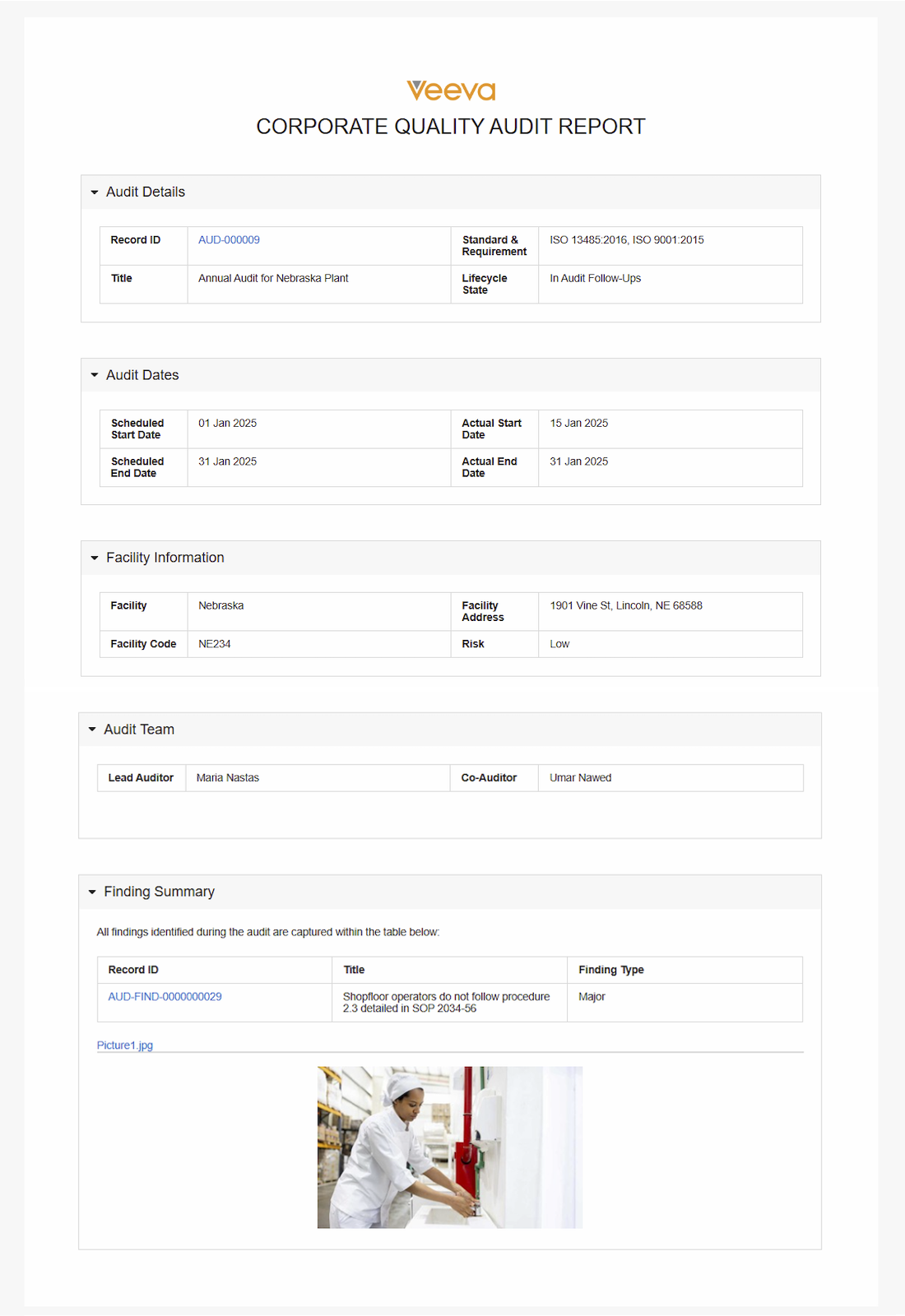
[QualityOne Vaults](/en/lr/78610/) enable you to generate a printable view of information from an _Audit_, including _Audit Findings_ and supporting images, and optionally audit checklists. After generating the printable view, you can download, save, and print a PDF file of the view's content, eliminating the need to manually export and collate Vault data to create audit reports.
Depending on your [Admin's configuration](/en/lr/824755/), object, field, and section labels may appear differently than the labels mentioned in this article.
 ## Generating & Downloading the Printable View {#generate}
Once all respondents have completed their assigned audit checklists and as the final step in an _Audit_, you can generate a printable view containing information from the _Audit_, including audit findings and their supporting images and checklists grouped by section and question. After generating the printable view, you can download and save a PDF file of its content.
To generate and download the printable view:
1. Navigate to **Business Admin > Objects > Audits** or to your Vault's **Audits** tab and select the **Audit** for which you wish to generate a report.
2. Open the **All Actions** menu and click **Generate Audit Report Printable View**. This label may differ depending on your organization's configuration. The view might take a few minutes to generate.
3. Optional: Use the filtering options in the _Filters_ () panel on the left:
* Select the **Include Checklist(s)** checkbox to include checklist responses for all audit checklists in the _Audit_.
* Select the **Exclude unanswered questions** checkbox to include answered checklist questions only.
4. Before downloading or printing, scroll through the entire report and open any collapsed sections to ensure all data and images have finished loading. Any data that is not visible on the generated printable view in Vault will not be included in the PDF file.
* Optional: Collapse any sections you wish to exclude from the saved PDF file.
5. To download a PDF file of the audit report as it appears on your screen, click the **Print Audit Report** (
## Generating & Downloading the Printable View {#generate}
Once all respondents have completed their assigned audit checklists and as the final step in an _Audit_, you can generate a printable view containing information from the _Audit_, including audit findings and their supporting images and checklists grouped by section and question. After generating the printable view, you can download and save a PDF file of its content.
To generate and download the printable view:
1. Navigate to **Business Admin > Objects > Audits** or to your Vault's **Audits** tab and select the **Audit** for which you wish to generate a report.
2. Open the **All Actions** menu and click **Generate Audit Report Printable View**. This label may differ depending on your organization's configuration. The view might take a few minutes to generate.
3. Optional: Use the filtering options in the _Filters_ () panel on the left:
* Select the **Include Checklist(s)** checkbox to include checklist responses for all audit checklists in the _Audit_.
* Select the **Exclude unanswered questions** checkbox to include answered checklist questions only.
4. Before downloading or printing, scroll through the entire report and open any collapsed sections to ensure all data and images have finished loading. Any data that is not visible on the generated printable view in Vault will not be included in the PDF file.
* Optional: Collapse any sections you wish to exclude from the saved PDF file.
5. To download a PDF file of the audit report as it appears on your screen, click the **Print Audit Report** ( ) icon or use a [keyboard shortcut][1].
6. Use your browser's print dialog to save the file.
7. When you're finished viewing and downloading the report, click **Close**.
### About Audit Report Printable View Keyboard Shortcuts {#shortcut}
After generating an audit report printable view, you can use one of the following keyboard shortcuts to save and print a PDF of the audit report:
* For Windows operating systems: **Alt** + **P**
* For MacOS operating systems: **Opt** + **P**
## Limitations {#limitations}
The following limitations apply to audit report printable views:
* Attachments in the printable view display only in _Audit Findings_ related object sections.
* The following scenarios prevent images from rendering in the printable view:
* Single images larger than 15 MB
* A total size of 100 MB for all images attached to a single report
* The printable view supports 50 images per page. To increase this limit, contact your Veeva Representative.
* Dependent checklist questions and sections are not supported.
* Aggregate checklists are not supported.
* Translated checklists are not supported.
* The following limits apply to audit checklists in the printable view:
* 200 audit checklists per _Audit_
* 3,000 responses per checklist
* 3,000 total checklist responses per _Audit_
* 100 attachments per checklist response
* 100 audit findings per checklist
* Images with a file size smaller than 1 MB are not resized. These images display as their original size in the printable view.
[1]: #shortcut
) icon or use a [keyboard shortcut][1].
6. Use your browser's print dialog to save the file.
7. When you're finished viewing and downloading the report, click **Close**.
### About Audit Report Printable View Keyboard Shortcuts {#shortcut}
After generating an audit report printable view, you can use one of the following keyboard shortcuts to save and print a PDF of the audit report:
* For Windows operating systems: **Alt** + **P**
* For MacOS operating systems: **Opt** + **P**
## Limitations {#limitations}
The following limitations apply to audit report printable views:
* Attachments in the printable view display only in _Audit Findings_ related object sections.
* The following scenarios prevent images from rendering in the printable view:
* Single images larger than 15 MB
* A total size of 100 MB for all images attached to a single report
* The printable view supports 50 images per page. To increase this limit, contact your Veeva Representative.
* Dependent checklist questions and sections are not supported.
* Aggregate checklists are not supported.
* Translated checklists are not supported.
* The following limits apply to audit checklists in the printable view:
* 200 audit checklists per _Audit_
* 3,000 responses per checklist
* 3,000 total checklist responses per _Audit_
* 100 attachments per checklist response
* 100 audit findings per checklist
* Images with a file size smaller than 1 MB are not resized. These images display as their original size in the printable view.
[1]: #shortcut