# About the Process Hierarchy Page (Document Control)
QualityOne Vaults
allow you to display business processes and associated documents in a hierarchical interface. The _Process Hierarchy_ page displays a process tree made up of various business processes to help manage and maintain any quality process changes in your organization.
You can select and view top-level Processes for a Hierarchy using the [Viewer][1]. Selecting a [Process][2] allows you to review its general information, associated processes, and relevant documents. Your Admin
creates and manages the foundation of each Process Hierarchy and defines the Hierarchies using a standard data model.
Depending on your Admin's configuration
, object, field, and section labels may appear differently than the labels mentioned in this article.
## About Process Hierarchy Terminology {#terminology}
Document Control uses conceptual terminologies to support and define Hierarchies:
* **Hierarchy**: A structure created by defining parent-child relationships between _Visual Hierarchy_ object type records. A Hierarchy consists of one (1) parent record and up to five (5) levels of child records.
* **Process**: A series of business activities or related steps, stored as _Visual Hierarchy_ records and displayed on the _Process Hierarchy_ page.
* **Associated Processes**: Processes that are related through a parent-child relationship.
* **Viewer**: The landing page for Process Hierarchy. This page displays the process tree and nodes of business processes.
## Navigating the Viewer {#viewer}
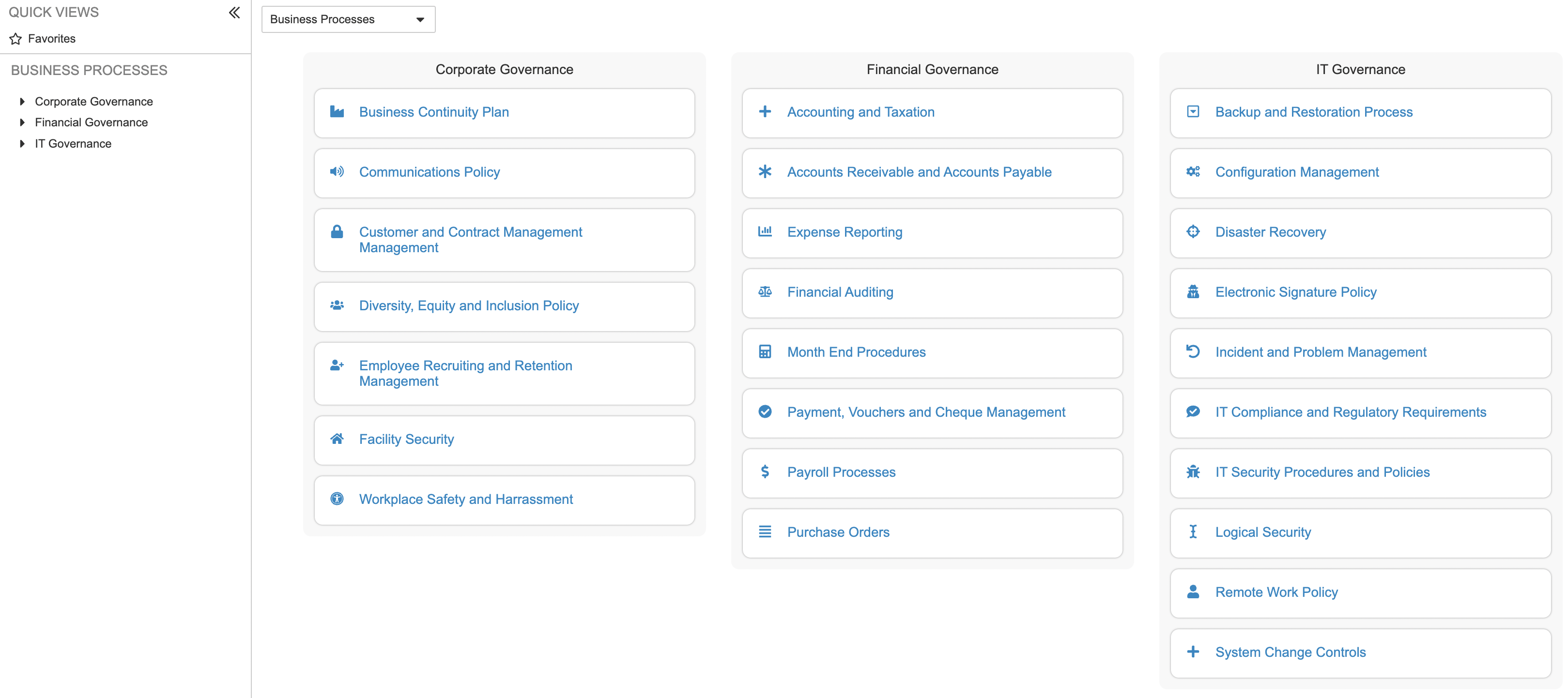 To open the Viewer, click on the **Hierarchies** tab. In some Vaults, _Hierarchies_ may be your default tab after you login to Vault.
### Hierarchy Selector {#selector}
If your Admin has configured more than one (1) type of Hierarchy, a drop-down menu appears at the top-left of the page. You can select a Hierarchy from the drop-down menu.
### Main Section {#main}
This section may contain both Processes and categories of Processes. Select the categories in this section to view additional information, lower-level processes, and documents in the [_Process Details_ page][2].
### Navigation Drawer {#navigation-drawer}
The expandable section on the left side of the Viewer and _Process Details_ page allows you to navigate through the Hierarchy without leaving your current page. Selecting a Process takes you directly to its _Process Details_ page.
## Navigating the Process Details Page {#process-details}
To open the Viewer, click on the **Hierarchies** tab. In some Vaults, _Hierarchies_ may be your default tab after you login to Vault.
### Hierarchy Selector {#selector}
If your Admin has configured more than one (1) type of Hierarchy, a drop-down menu appears at the top-left of the page. You can select a Hierarchy from the drop-down menu.
### Main Section {#main}
This section may contain both Processes and categories of Processes. Select the categories in this section to view additional information, lower-level processes, and documents in the [_Process Details_ page][2].
### Navigation Drawer {#navigation-drawer}
The expandable section on the left side of the Viewer and _Process Details_ page allows you to navigate through the Hierarchy without leaving your current page. Selecting a Process takes you directly to its _Process Details_ page.
## Navigating the Process Details Page {#process-details}
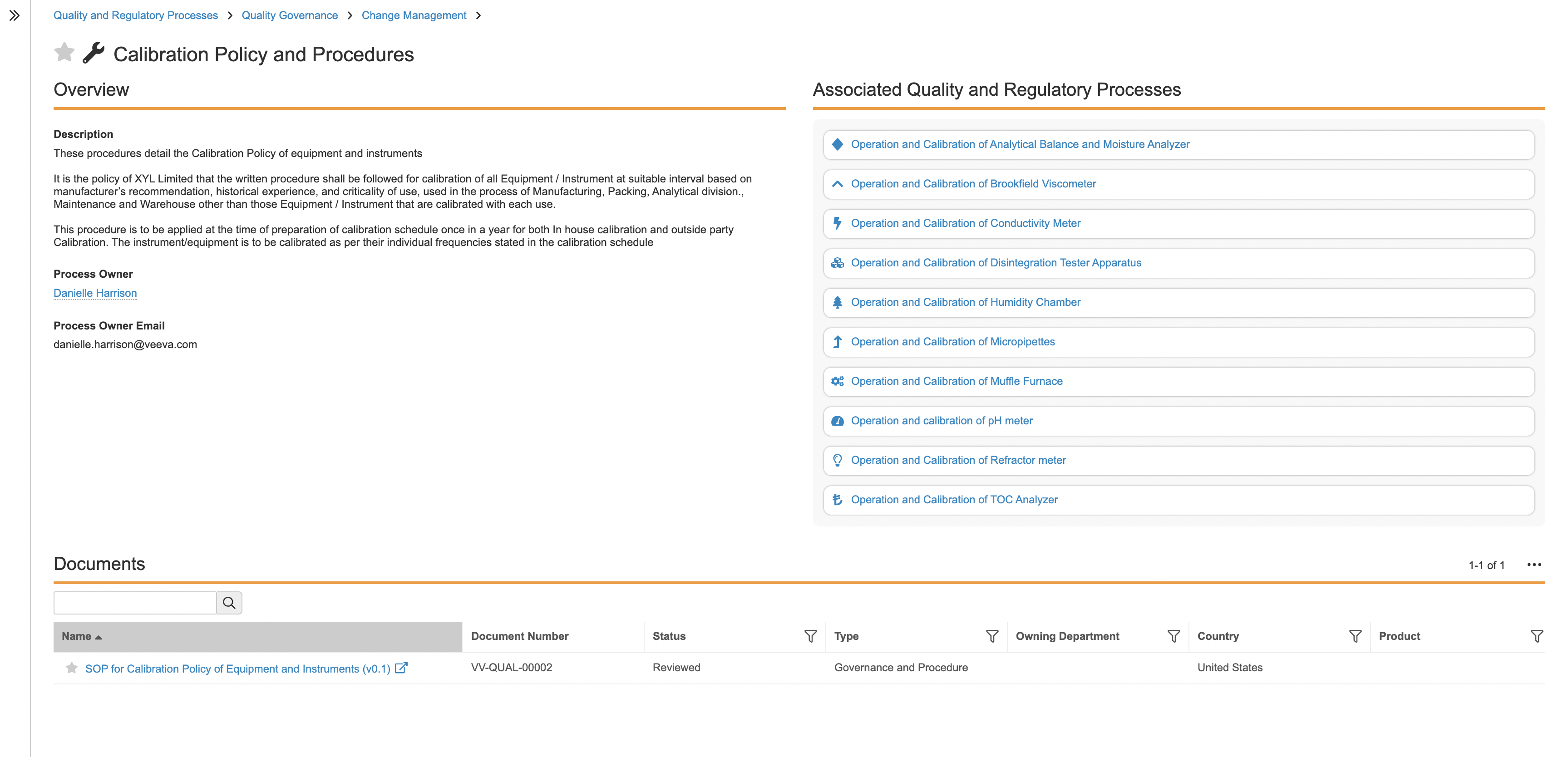 Selecting a process from the main section of the Hierarchies page directs you to its _Process Details_ page. You can navigate back up through the hierarchy of processes using the breadcrumb trail at the top of the page.
### General {#general}
This section displays the description and any relevant information that your organization requires. If available, select **View more fields** to view additional information in a pop-up dialog.
### Associated Processes {#associated}
This section lists the child Processes associated with the parent Process. Selecting an Associated Process directs you to its own _Process Details_ page.
### Documents {#documents}
This section contains a list of available supporting documents for the current Process. You can [search, sort, or filter][3] the document list to narrow it down and find the document you're looking for.
#### Searching, Sorting & Filtering Documents {#search-sort-filter}
Use the following tools to easily find the process documents you're seeking in the _Documents_ section:
* **Search**: The search dialog returns a list of documents containing the words you search for. This function only searches for values contained within the _Name_ field of the documents.
* **Sorting**: You can sort documents alphabetically by their _Name_ in ascending or descending order.
* **Filter**: Select the **filter** (
Selecting a process from the main section of the Hierarchies page directs you to its _Process Details_ page. You can navigate back up through the hierarchy of processes using the breadcrumb trail at the top of the page.
### General {#general}
This section displays the description and any relevant information that your organization requires. If available, select **View more fields** to view additional information in a pop-up dialog.
### Associated Processes {#associated}
This section lists the child Processes associated with the parent Process. Selecting an Associated Process directs you to its own _Process Details_ page.
### Documents {#documents}
This section contains a list of available supporting documents for the current Process. You can [search, sort, or filter][3] the document list to narrow it down and find the document you're looking for.
#### Searching, Sorting & Filtering Documents {#search-sort-filter}
Use the following tools to easily find the process documents you're seeking in the _Documents_ section:
* **Search**: The search dialog returns a list of documents containing the words you search for. This function only searches for values contained within the _Name_ field of the documents.
* **Sorting**: You can sort documents alphabetically by their _Name_ in ascending or descending order.
* **Filter**: Select the **filter** ( ) icon at the top of each document field column to filter on the available values.
* **Edit Columns**: Located in the **Actions** menu of the **Document** section, you can add or remove document field columns as needed. Column configuration changes persist in all document lists in the _Process Details_ pages. You can reset changes back to default settings.
#### Viewing Documents {#viewing-documents}
Selecting a document opens a new pop-out browser window. The _Process Details_ page displays the latest version of a document that your Vault permissions allow you to view.
[1]: #viewer
[2]: #process-details
[3]: #search-sort-filter
) icon at the top of each document field column to filter on the available values.
* **Edit Columns**: Located in the **Actions** menu of the **Document** section, you can add or remove document field columns as needed. Column configuration changes persist in all document lists in the _Process Details_ pages. You can reset changes back to default settings.
#### Viewing Documents {#viewing-documents}
Selecting a document opens a new pop-out browser window. The _Process Details_ page displays the latest version of a document that your Vault permissions allow you to view.
[1]: #viewer
[2]: #process-details
[3]: #search-sort-filter