# Configuring Direct Assignments (Training Management)

<a href="/en/gr/55180/">QualityOne Vaults</a> provide Direct Assignments to allow you to issue training assignments to Learners as-needed, separately from the system-managed job process. This is useful for situations that require Learners to train on documents that may not be part of their normal training matrix or when you need to manually assign re-training. You can also use a direct assignment action to assign Learners a _Curriculum_, which can contain <a href="/en/gr/55154/#training-req">multiple training requirements</a>.

## Direct Assignment Objects {#objects}

QualityOne uses the following objects to support Direct Assignments:

* **Direct Assignment User Input** (`direct_assignment_user_input__v`): This object represents data entered when you create a direct assignment. For example, due dates, Learners, and the reason for the assignment. Modify the page layout of this object to add or remove fields in the dialog box. As this object is intended only to collect data, we recommend that any reporting, searching, or other related functions be performed against the _Direct Assignment Request_ object.
* **Direct Assignment Request** (`direct_assignment_request__v`): This object copies data from the _Direct Assignment User Input_ object. When this object moves into the _Issued_ state, Vault creates a training assignment and issues it to relevant Learners. Vault does not copy over custom fields added to the _Direct Assignment User Input_ object. The _Training Assignment_ record contains a reference to the _Direct Assignment Request_ record, and the _Direct Assignment Request_ record contains a reference to the _Direct Assignment User Input_ object.

## Configuration Overview {#overview}

Configuring your Vault to use Direct Assignments involves the following steps:

1. Configure the <a href="/en/gr/43127/">_Direct Assignment_ user action</a> for the _Training Requirement_ or _Curriculum_ object.
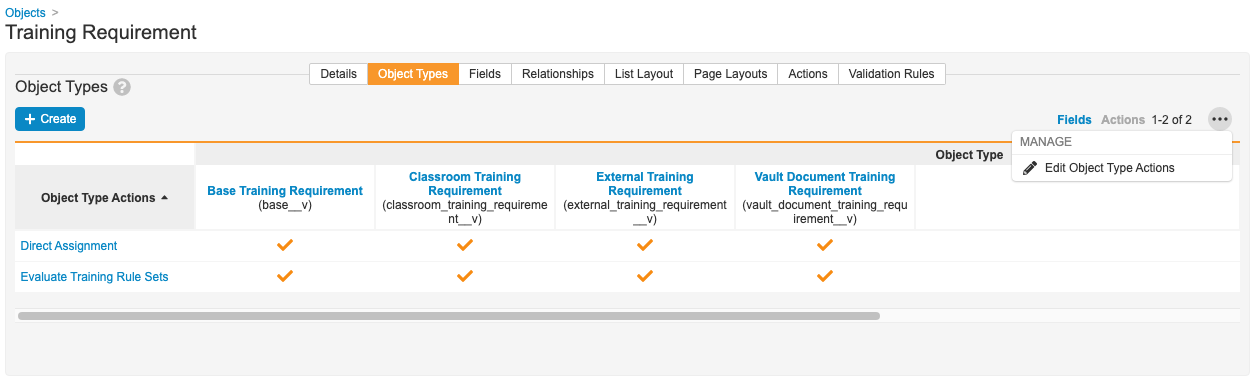
2. Select the appropriate object types checkbox by navigating to **Objects > Training Requirement > Object Types**, then ensure you select **Actions** (not **Fields**) beside the _Actions_ menu. Select **Edit Object Type Actions** in the **Actions** menu to make this checkbox available for selection.
3. Ensure appropriate users have _Execute_ permission for the _Direct Assignment_ user action.
4. <a href="/en/gr/47850/">Configure Atomic Security</a> on the _Direct Assignment_ lifecycle for the _Direct Assignment_ user action.

<a href="https://platform.veevavault.help/assets/images/CPC-TrainingMgmt-DirectAssignmentsUserActions.png" data-lightbox="CPC-TrainingMgmt-DirectAssignmentsUserActions.png" data-title="" data-alt="Direct Assignments User Action">
  <img class="docimage" src="https://platform.veevavault.help/assets/images/CPC-TrainingMgmt-DirectAssignmentsUserActions.png" alt="Direct Assignments User Action" style=""  />
</a>

<div class="note-border alert-info">
  <div class="alert alert-info" role="alert">
    <div><i class="far fa-info-circle"></i></div>
    <div class="alert-text">
      <p><strong>Note</strong>: Depending on your Vault’s creation date and which features are currently enabled and configured, some of the steps described in this article may be unavailable or already complete in your Vault.</p>
    </div>
  </div>
</div>


## Creating Direct Assignments {#create-direct-assign}

To create a direct assignment for a single _Training Requirement_:

1. Navigate to a training requirement in the _Available_ lifecycle state.
2. Select **Direct Assignment** from the **All Actions** menu.
3. Enter required fields and click **Continue**. You can select multiple _Persons_ in the **Learners** field.

To create a direct assignment for a _Curriculum_:

1. Navigate to a _Curriculum_ in the _Available_ lifecycle state.
2. Select **Direct Assignment** from the **All Actions** menu.
3. Enter required fields. You can select multiple _Persons_ in the Learners field. Select a value for the **Apply to Training Requirements in** field to indicate whether Training Management should create _Direct Assignment Request_ records for _Training Requirements_ in _Available States Only_ or _All States Except Retired_.
4. Click **Continue**.

Vault creates a _Direct Assignment User Input_ record and a _Direct Assignment Request_ object record. The _Direct Assignment User Input_ record contains a list of comma-separated _Person ID_ values in the _Learners_ (`learners__v`) text field. This record collects data only, and we recommend users use the _Direct Assignment Request_ object for reporting and searching.

The _Direct Assignment Request_ record contains:

* The _Requested By_ field that is set to the person's name who executed the user action.
* Other field values (_Learner_, _Due Date_, _Reason_, and _Training Requirement_). Vault copies these values from the _Direct Assignment User Input_ record.

Vault immediately moves _Direct Assignment Request_ records into the _Issued_ state, which creates and issues a training assignment with the following properties:

* The _Training Assignment_ record has a reference to the _Direct Assignment Request_ record.
* The field _Created Via Direct Assignment_ is set to "Yes" on the _Training Assignment_ record.

If Vault encounters problems when creating _Direct Assignment Request_ or _Training Assignment_ records, an email is sent to the user who initiated the _Direct Assignment_ action.

<div class="note-border alert-info">
  <div class="alert alert-info" role="alert">
    <div><i class="far fa-info-circle"></i></div>
    <div class="alert-text">
      <p><strong>Note</strong>: Adding or editing entry criteria on the <em>Direct Assignment Request</em> lifecycle may prevent Vault from changing the state of a <em>Direct Assignment Request</em> from <em>Created</em> to <em>Issued</em>. This would mean Vault would not automatically create a training assignment after you use the <em>Direct Assignment</em> action.</p>
    </div>
  </div>
</div>


## Canceling Direct Assignments {#cancel-direct-assin}

You can cancel direct assignments in the following ways:

* Move the related training requirement or curriculum to the _Retired_ state. This cancels any direct assignments immediately.
* Set the _Person_ record **Status** to **Inactive**, or set its **Training Eligibility** to **Ineligible**.
* Select **Change State to Cancelled** from the **All Actions** menu. This action is only available for a training assignment created via a direct assignment (_Created Via Direct Assignment_ field is set to "Yes").

Creating direct assignments does not affect the automation process. Training assignments created with the direct assignment action are ad-hoc and are not tracked in training matrices.

## Integrating Training Management with QualityOne Processes {#integration}

You can also issue a training assignment from a quality process. For example, a corrective action could require that certain users be trained on a training requirement.

To set this up:

1. On the _Direct Assignment Request_ object, create an object reference field to the target quality process. For example, _Corrective Action_.
2. Create an object type for the quality process you want to integrate with.
3. Associate the _Requested By_ field and the object reference field to that object type.
4. On the page layout for the target quality process, add a related object for _Direct Assignment Request_.

To issue an assignment:

* From your quality process, create a _Direct Assignment Request_ record. If _Requested By_ is not set, Vault populates that field with the user's name who created the record.
* Change the state of the related _Direct Assignment Request_ record to _Issued._
* Once in _Issued_, Vault creates a _Training Assignment_ record.

## Related Permissions {#permissions}

You can complete all the steps in this article with the standard _System Administrator_ or _Vault Owner_ security profile. If your Vault uses custom security profiles, your profile must grant the following <a href="/en/gr/22824/">permissions</a>:

<table>
  <tr>
    <th><strong>Type</strong></th>
    <th><strong>Permission</strong></th>
    <th><strong>Controls</strong></th>
  </tr>
  <tr>
    <td>Security Profile</td>
    <td>Objects: Direct Assignment User Input: Create</td>
    <td>Ability to create <em>Direct Assignment User Input</em> records.</td>
  </tr>
  <tr>
    <td>Security Profile</td>
    <td>Objects: Training Requirement: Object Action Permissions: Execute</td>
    <td>Ability to execute the <em>Direct Assignment</em> user action.</td>
  </tr>
</table>