Note: This feature is not available unless it was enabled in your Vault prior to 25R2. The External Collaboration Management feature provides similar functionality by enabling the assignment of an external collaborator to respond to requests on supported object records.
Note: Depending on your Vault’s creation date and which features are currently enabled and configured, some of the steps described in this article may be unavailable or already complete in your Vault.
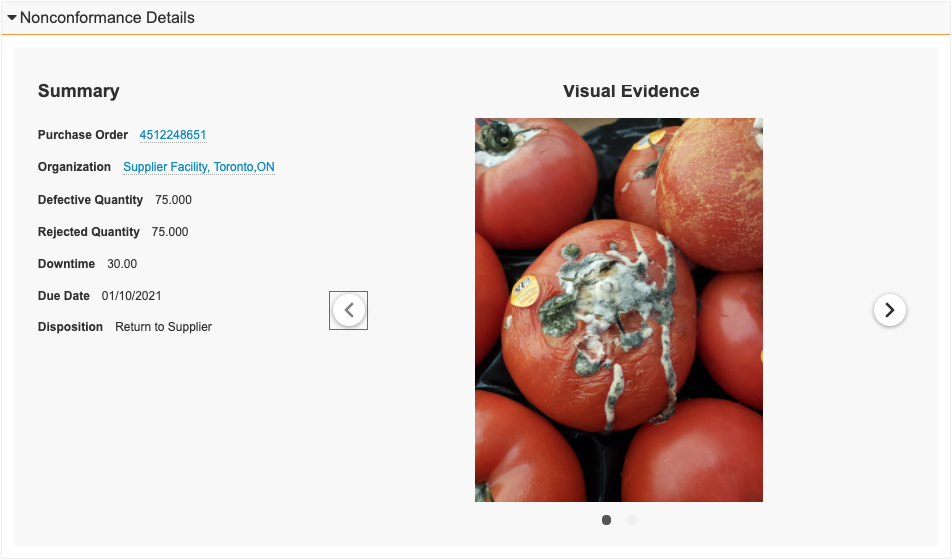
#### How to Insert Detail Form with Carousel Sections {#add-detail-carousel}
To insert a _Detail Form with Carousel_ section:
1. In the NCR object layout editor, click **Insert Section**.
2. Select **Detail Form with Carousel**.
3. Enter a **Section Label** and **Section Name**. Only the label will appear for users.
4. Optional: In the **Show the section only in these lifecycle states** field, select one (1) or more lifecycle states. This option only appears for objects that use lifecycles.
5. Optional: Enter the **Group 1 Label**. Group 1 displays at the top of the left side of the section.
6. Optional: Enter the **Fields in Group 1**. Use the _Name_ of any NCR object fields except for fields of type _Formula_. Fields display in the order listed. If you do not enter the **Group 1 Label**, fields display without a group header.
7. Optional: Enter the **Group 2 Label**. Group 2 displays below Group 1 on the left side of the section if you have specified values for Group 1. If you specify values only for Group 2, Group 2 appears at the top of the section. Use Group 2 only if you want to display two (2) groupings of fields.
8. Optional: Enter the **Fields in Group 2**. Use the _Name_ of any NCR object fields except for fields of type _Formula_. If you do not enter the **Group 2 Label**, fields display without a group header. Fields display in the order listed.
9. Optional: Select the size of the **Image Carousel** to include in the section or select _None_ to exclude the image carousel.
10. Optional: Enter the **Title** for the image carousel.
11. Click **Done**.
Note: Do not include any fields of type Object Reference which reference the User object in Fields in Group 1 or Fields in Group 2.
Note: You must ensure suppliers are granted the appropriate view, create, edit, and delete permissions on the objects you include in Related Object List View sections so they can interact with objects.
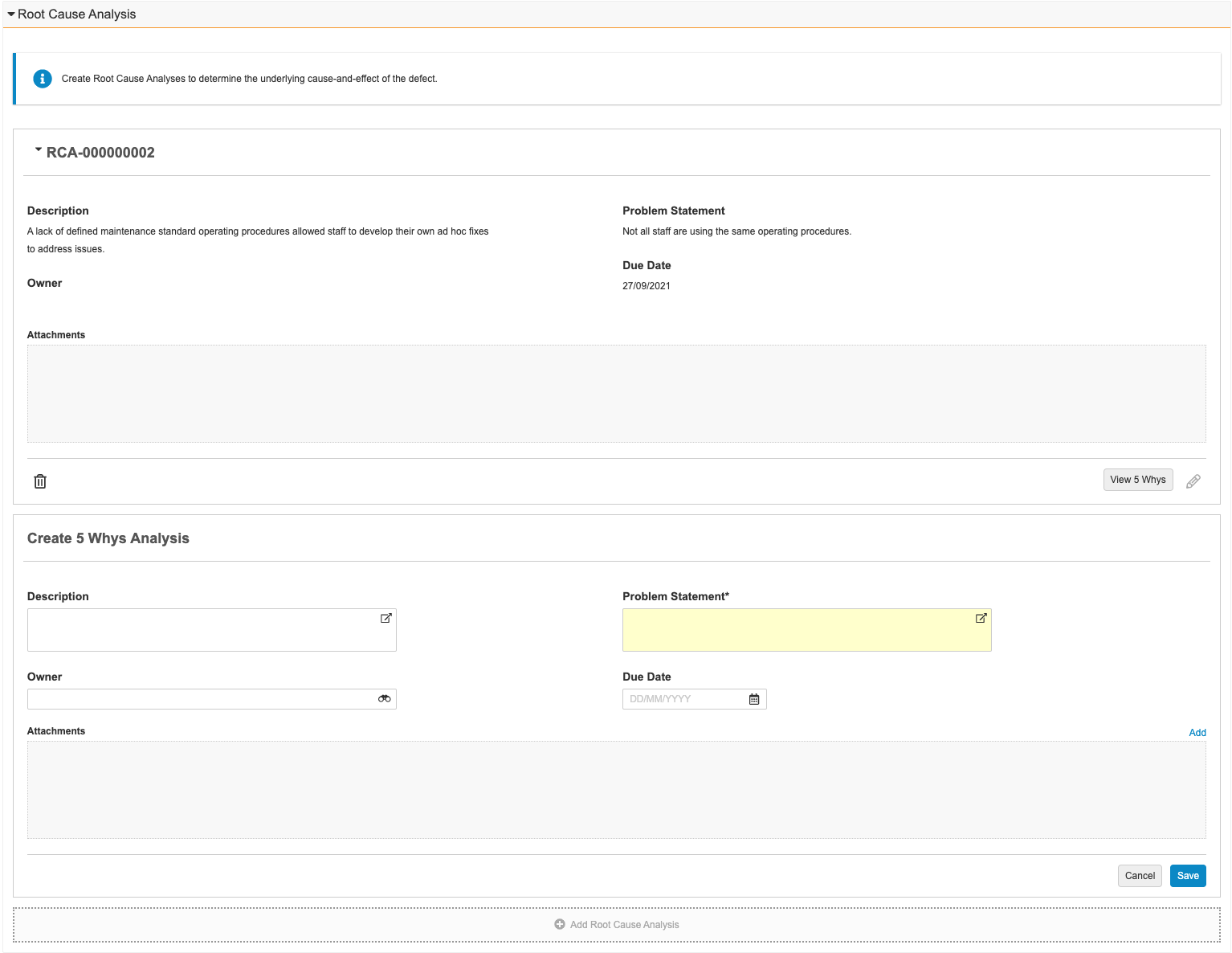 #### How to Insert Related Object List View Sections {#add-related-list}
To insert a section showing related object records in list view:
1. In the _NCR_ object layout editor, click **Insert Section**.
2. Select **Related Object List View**.
3. Enter a **Section Label** and **Section Name**. Only the label will appear for users.
4. Optional: In the **Show the section only in these lifecycle states** field, select one (1) or more lifecycle states.
5. Optional: Enter the **Instruction Text** to provide the user with guidance of what to do in this section.
6. Optional: Enter the text to use for the **Instruction Link Text** which users can click to open a document in a new tab containing further instructions or extra information.
7. Optional: Enter the **Link Document ID** of the document to link to. Ensure users have the appropriate permissions to access the document and that the document is in _Steady State_.
8. Enter the _Name_ (not the _Label_) of a **Related Object**.
9. Optional: Enter the _Name_ (not the _Label_) for the **Object Type** of the _Related Object_. If you do not enter an object type, Vault uses the default object type
10. Enter the **Object Reference Field on Related Object** to provide the field on the related object that refers back to the _NCR_ object.
11. Choose a **Section Layout**: **One Column** or **Two Columns**.
12. Enter the _Name_ of the **Fields** on the related object to display in the section.
13. Optional: Select **Is Expanded** to have the section expanded by default when the page loads.
14. Specify the label for the **Add Button** which users click to add new records.
15. Enter the _Name_ of a related object field to use to display as the **List View Header Field**.
16. Optional: Enter the _Name_ of a related object field to use as the **List View Subtext Field**.
17. Optional: Enter the **First Attachment Section Label**. The first attachment section displays on the left side at the bottom of the section.
18. Optional: Enter the text to use as the **First Attachment File Prefix**. This text is added to the beginning of the filenames, followed by an underscore, for files attached in this section. For example, if you entered the text _Before_, a file called _example.png_ would appear as _Before\_example.png_.
19. Optional: Enter the **Second Attachment Section Label**. The second attachment section displays on the right side at the bottom of the section. If you specify values only for the second attachment section, the second attachment section appears on the left side of the section. Use the second attachment section only if you want to display two (2) groupings of attachments.
20. Optional: Enter the text to use as the **Second Attachment File Prefix**. This text is added to the beginning of the filenames, followed by an underscore, for files attached in this section.
21. Click **Done**.
## NCR Lifecycle {#lifecycles}
_NCR_ object records use the _NCR_ object lifecycle. Your organization may add custom lifecycle states to suit your specific needs.
## Configuring User Permissions {#user-permissions}
You must ensure users have the appropriate read and create permissions to access the appropriate objects and object fields in addition to the permissions outlined below:
* For the _NCR_ object: _Read_ permission.
* For suppliers to interact with _Related Object List View_ sections, ensure the related object has the _Read_, _Create_, _Edit_, and _Delete_ permissions.
## Related Permissions {#permissions}
You can complete all the steps in this article with the standard _System Administrator_ or _Vault Owner_ security profile. If your Vault uses custom security profiles, your profile must grant the following permissions:
#### How to Insert Related Object List View Sections {#add-related-list}
To insert a section showing related object records in list view:
1. In the _NCR_ object layout editor, click **Insert Section**.
2. Select **Related Object List View**.
3. Enter a **Section Label** and **Section Name**. Only the label will appear for users.
4. Optional: In the **Show the section only in these lifecycle states** field, select one (1) or more lifecycle states.
5. Optional: Enter the **Instruction Text** to provide the user with guidance of what to do in this section.
6. Optional: Enter the text to use for the **Instruction Link Text** which users can click to open a document in a new tab containing further instructions or extra information.
7. Optional: Enter the **Link Document ID** of the document to link to. Ensure users have the appropriate permissions to access the document and that the document is in _Steady State_.
8. Enter the _Name_ (not the _Label_) of a **Related Object**.
9. Optional: Enter the _Name_ (not the _Label_) for the **Object Type** of the _Related Object_. If you do not enter an object type, Vault uses the default object type
10. Enter the **Object Reference Field on Related Object** to provide the field on the related object that refers back to the _NCR_ object.
11. Choose a **Section Layout**: **One Column** or **Two Columns**.
12. Enter the _Name_ of the **Fields** on the related object to display in the section.
13. Optional: Select **Is Expanded** to have the section expanded by default when the page loads.
14. Specify the label for the **Add Button** which users click to add new records.
15. Enter the _Name_ of a related object field to use to display as the **List View Header Field**.
16. Optional: Enter the _Name_ of a related object field to use as the **List View Subtext Field**.
17. Optional: Enter the **First Attachment Section Label**. The first attachment section displays on the left side at the bottom of the section.
18. Optional: Enter the text to use as the **First Attachment File Prefix**. This text is added to the beginning of the filenames, followed by an underscore, for files attached in this section. For example, if you entered the text _Before_, a file called _example.png_ would appear as _Before\_example.png_.
19. Optional: Enter the **Second Attachment Section Label**. The second attachment section displays on the right side at the bottom of the section. If you specify values only for the second attachment section, the second attachment section appears on the left side of the section. Use the second attachment section only if you want to display two (2) groupings of attachments.
20. Optional: Enter the text to use as the **Second Attachment File Prefix**. This text is added to the beginning of the filenames, followed by an underscore, for files attached in this section.
21. Click **Done**.
## NCR Lifecycle {#lifecycles}
_NCR_ object records use the _NCR_ object lifecycle. Your organization may add custom lifecycle states to suit your specific needs.
## Configuring User Permissions {#user-permissions}
You must ensure users have the appropriate read and create permissions to access the appropriate objects and object fields in addition to the permissions outlined below:
* For the _NCR_ object: _Read_ permission.
* For suppliers to interact with _Related Object List View_ sections, ensure the related object has the _Read_, _Create_, _Edit_, and _Delete_ permissions.
## Related Permissions {#permissions}
You can complete all the steps in this article with the standard _System Administrator_ or _Vault Owner_ security profile. If your Vault uses custom security profiles, your profile must grant the following permissions:
| Type | Permission | Controls |
|---|---|---|
| Security Profile | Admin: Configuration: Object Lifecycles: Create, Edit | Ability to create and modify lifecycles. |
| Security Profile | Admin: Configuration: Object Workflows: Create, Edit | Ability to create and modify workflows. |
| Security Profile | Admin: Configuration: Objects: Create, Edit | Ability to create and modify Vault objects. |