Vault Query Language (VQL) is a SQL-like language which allows you to query information in Vault. Criteria VQL is a slimmed-down version of VQL used in the Vault UI. This article provides detailed information for Admins on using Criteria VQL to configure:
- Rule criteria for custom sharing rules on objects.
- Static reference constraints to restrict records available for selection.
- Dynamic reference constraints to restrict records available for selection.
- Filter criteria on query object rules.
- Criteria VQL in related object or document sections.
The following image shows a Criteria VQL input field for creating custom sharing rules in the Vault UI:
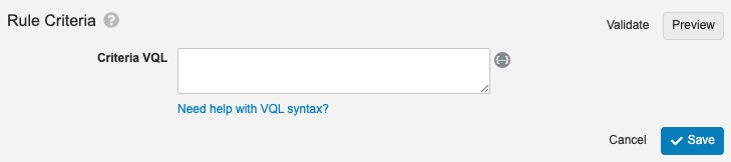
Click Token Helper ( ) to the right of the Criteria VQL field to search for available tokens on an object. String field values are case-sensitive.
Use a backslash (\) to escape special characters in VQL.
Dynamic Access Control & Static Reference Constraints
The following applies to static constraints; dynamic reference constraints use tokens.
Rules for dynamic access control and static reference constraints use the same criteria. The sections below explain the available fields.
Nested expressions (join relationships) are not allowed. Additionally, OR is not supported for constraints on documents.
ID Fields
Object record IDs are system-managed fields used in the API and are not visible in the Vault UI. If you know the object record ID, you can use it to identify the object record. However, you can also use the object record name.
| Object | Object Record | Field Name | Field Value (example) | Rule Criteria Entry |
|---|---|---|---|---|
| Product | CholeCap | id |
ABC000000001001 |
id = ABC000000001001 |
| Study | VVT485-301 | id |
DEF000000001002 |
id = DEF000000001002 |
We recommend using object record name fields and lookup fields to identify your object records.
Text (String) Fields
Enter text field value labels as shown in the object record details (capitals, spaces, special characters, and so on) and enclose all values in single quotes ('). These are case-sensitive (meaning Cholecap does not equal CholeCap).
Here are some examples of commonly used criteria:
| Object Label | Field Label | Field Name | Field Value (example) | Rule Criteria Entry |
|---|---|---|---|---|
| Product | Product Name | name__v |
CholeCap |
name__v = 'CholeCap' |
| Country | Country Name | name__v |
United States |
name__v = 'United States' |
| Study | Study Number | name__v |
VVT485-301 |
name__v = 'VVT485-301' |
| Study | Study Name | study_name__vs |
Cholecap Efficacy Trial |
study_name__vs = 'Cholecap Efficacy Trial' |
Picklist Fields
When querying picklists, the behavior varies slightly between documents, objects, and workflows.
Workflows
To query workflow picklists, use the picklist value label enclosed in single quotes ('). For example, the Therapeutic Area picklist field has the picklist value label Hematology, so you would enter therapeutic_area__vs = 'Hematology'.
If you supply a value that is not a valid label, VQL treats the result as undefined. This means inequalities return nothing. For example, workflow_type__v {=,>,<} 'Invalid Label' returns nothing because 'Invalid Label' is not a valid value of the picklist.
Documents
To query document picklists, use the picklist value label enclosed in single quotes ('). For example, the Therapeutic Area picklist field has the picklist value label Hematology, so you would enter therapeutic_area__vs = 'Hematology'.
If you supply an invalid value for the label, VQL treats the label as a string. This means inequalities operate alphabetically and return results for invalid picklist values. For example, if a picklist named p contains values {'k', 'g', 'a'}, then p < 'h' evaluates to true for values 'a' and 'g'.
Objects
To query object picklists, do not enter picklist value labels as shown in the object record details. Instead, use the picklist value name enclosed in single quotes ('). For example, the Therapeutic Area picklist field has the picklist value label Hematology and the picklist value name hematology__vs, so you would enter therapeutic_area__vs = 'hematology__vs'. To find picklist value names, navigate to Business Admin > Picklists.
If you supply an invalid value for the label, VQL treats the label as a string. This means inequalities operate alphabetically and return results for invalid picklist values. For example, if a picklist named p contains values {'k', 'g', 'a'}, then p < 'h' evaluates to true for values 'a' and 'g'.
Here are some examples of commonly used criteria:
| Object Label | Field Label | Field Name | Field Value (example) | Rule Criteria Entry |
|---|---|---|---|---|
| Product | Therapeutic Area | therapeutic_area__vs |
hematology__vs |
therapeutic_area__vs = 'hematology__vs' |
| Product | Product Family | product_family__vs |
wonderdrug_family__c |
product_family__vs = 'wonderdrug_family__c' |
| Study | Study Type | study_type__v |
safety__vs |
study_type__v = 'safety__vs' |
| Study | Study Phase | study_phase__v |
phase3__vs |
study_phase__v = 'phase3__vs' |
Object Lookup Fields
Many object records have relationships with other object records. For example, the object record details for study number VVT485-301 shows that it is associated with the product CholeCap. When looking at fields configured on a particular object, these have the data type Object with the object type in parentheses. For example, the Study object includes the field name product__v.
Assume you’re configuring rule criteria on the Study object and want to filter on the product named CholeCap. You cannot enter name__v = 'CholeCap' because the name__v field applies to the Study. If you knew the product ID, you could enter id = '1357663087386'. However, this is most easily achieved by using an object lookup field in the form product__vr.name__v = 'Cholecap'. By adding __vr to the product name and using dot notation to combine it with a product object field, Vault allows you to traverse the relationship between the two objects. You can apply this method to any Vault object.
- For standard objects (
vault_object__v), the lookup name isvault_object__vr.name__v. - For custom objects (
custom_object__c), the lookup name iscustom_object__cr.name__v.
Here are some examples of commonly used criteria:
| Object Label | Field Label | Field Name | Field Value (example) | Rule Criteria Entry |
|---|---|---|---|---|
| Study | Product | product__v |
WonderDrug |
product__vr.name__v = 'WonderDrug' |
| Study Site | Study | study_number__v |
VVT485-301 |
study_number__vr.name__v = 'VVT485-301' |
| Study Site | Study Location | location__v |
UCSF Medical Center |
location__vr.name__v = 'UCSF Medical Center' |
| Study Site | Study Country | study_country__v |
United States |
study_country__vr.name__v = 'United States' |
| Location | Country | country__v |
United States |
country__vr.name__v = 'United States' |
| Study Country | Study Number | study_number__v |
VVT485-301 |
study_number__vr.name__v = 'VVT485-301' |
Note: As a best practice, we recommend using the Token Helper () button to the right of the Criteria VQL text box to search for available object lookup fields.
Date & DateTime Fields
All Dates and DateTimes are entered and returned in UTC (Coordinated Universal Time) and not the user’s time zone.
- Dates formats are
YYYY-MM-DD(for example,2014-12-20) - DateTime formats are
YYYY-MM-DD'T'HH:MM:SS.SSS'Z'( for example,2014-12-20T15:30:00.000Z)
Here are some examples of commonly used criteria:
| Object Label | Field Label | Field Name | Field Value (example) | Rule Criteria Entry |
|---|---|---|---|---|
| Product | Created Date | created_date__v |
2014-12-20T15:30:00.000Z |
created_date__v != '2014-12-20T15:30:00.000Z' |
| Study | Start Date | study_start_date__vs |
2014-12-20 |
study_start_date__vs >= '2014-12-20' |
Numeric Fields
Numeric fields are always used with comparison operators (=, !=, <, >, <=, >=). You do not need to enclose the field value in single or double quotes.
Here are some examples using numeric fields as rule criteria:
| Object Label | Field Label | Field Name | Field Value (example) | Rule Criteria Entry |
|---|---|---|---|---|
| Study | Enrollment | enrollment__vs |
5000 |
enrollment__vs < 5000 |
| Publication | Distribution | distribution__c |
200 |
distribution__v >= 200 |
Boolean Fields
Boolean fields have only two possible values: true or false. In Vault Admin, these are referred to as Yes/No fields. You do not need to enclose the field value in single or double quotes.
Here are some examples using Boolean fields as rule criteria:
| Object Label | Field Label | Field Name | Field Value | Rule Criteria Entry |
|---|---|---|---|---|
| Publication | Approved | approved__c |
true |
approved__c = true |
| Publication | Approved | approved__c |
false |
approved__c = false |
Expression Limitations on Static Reference Constraints
You can use the following standard VQL operators when defining static reference constraints: =, !=, >, <, >=, <=.
To use the AND clause in your static reference constraint on a document field, you must use a comma (,). For example:
id IN (SELECT id FROM countryproduct__cr WHERE country__c CONTAINS {{this.country__v}}, state__v = 'approved_state__c')
There are several limitations on operations when querying multi-value picklists in raw objects.
Learn more about Criteria VQL operators below.
Dynamic Reference Constraints
Criteria VQL and filter expressions for dynamic reference constraints must contain a valid field value token instead of a static field value. For static reference constraints, see above.
Tokens are in the format {{this.field__name}}. The field must be an object or picklist field or a lookup field referencing an object or picklist field. You can also use {{current_user.field_name}} tokens to reference fields from the current user’s profile.
Object Reference Constraints
Here are some examples using dynamic constraints for objects:
| Description | Controlling Field Location | Field to Constrain (Controlled Field) | Relationship between Controlling and Controlled | Criteria VQL |
|---|---|---|---|---|
| Only show countries relevant for the selected region | Region, on the referring object | Country, on the referring object | Country has a reference field to Region, indicating the region in which a country belongs. Country and Region has a many-to-one relationship. | region__v = {{this.region__v}} |
| Only show applications relevant for the region of the selected country | Country, on the referring object | Application, on the referring object | Country has a reference field to Region, indicating the region in which a country belongs. Application has a reference to Region, indicating the region of the application. | region__v = {{this.country__vr.region__v}} |
| Only show applications relevant for the selected product | Product, on the referring object | Application, on the referring object | Product and Application objects have a many-to-many relationship and are related by the join object product_application__v. |
id IN (SELECT id FROM product_applications__rimr WHERE product__v = {{this.product__v}}) |
| Only show countries based on the user’s Region | Region, on the User object | Country, on the referring object | User has a reference field to Region, indicating the region in which a country belongs. Country and Region have a many-to-one relationship. | region__c = {{current_user.region__c}} |
Document Reference Constraints
Here are some examples using dynamic constraints for documents:
| Description | Controlling Field Location | Field to Constrain (Controlled Field) | Filter Expression |
|---|---|---|---|
| Only show indications relevant for the selected region | On the referring document | A document object reference field, Indication | region__v CONTAINS {{this.region__v}} |
| Only show applications relevant for the region of the selected country | On the referenced object | A document object reference field, Application | region__v CONTAINS {{this.document_country__vr.countries__vr.region__v}} |
| Only show applications relevant for the selected product | On an object related to the referenced object | A document object reference field, Application | id IN (SELECT id FROM product_applications__rimr WHERE product__rim CONTAINS {{this.product__v}}) |
Expression Limitations on Dynamic Reference Constraints
Dynamic tokens support the = and != comparison operators only.
Dynamic reference constraints support object and picklist fields and lookup fields referencing object and picklist fields. Other field types are supported in static reference constraints only.
There are several limitations on operations when querying multi-value picklists in raw objects.
Learn more about Criteria VQL operators below.
Query Object Rules Filter Clause
When working with integration rules, Admins can define Query Object Rules which are additional operations to perform against field rules. While field rules provide the SELECT portion of a query, query object rules provide the WHERE. To do this, an Admin enters Criteria VQL as the Filter Clause for the query object rule. For example, a field rule can select the Country field on Product object records. By defining your query object rule’s Filter Clause as WHERE status__v = 'active__v', you can filter for object records where the Status is Active.
Filter clauses support the following operators in addition to the standard Criteria VQL operators:
| Name | Description |
|---|---|
IN |
Determines whether or not a value is in the list of values provided after the IN operator. Can be used for inner join relationship queries on documents and objects only. |
LIKE |
Used with the wildcard character % to search for matching field values when you don’t know the entire value. VQL does not support fields which begin with a wildcard. |
OR |
Returns results when any of the values are true. |
Validate Limitations
To check your syntax, click Validate after entering the Criteria VQL. This link validates the following syntax:
- VQL syntax for the target Vault, which may differ from the source Vault
- For example, a general release Vault on version 26R1.0 uses VQL version v26.1, while a limited release Vault on version 26R1.3 uses VQL version v26.2. If you’re using a Vault to Vault connection between these two Vaults, valid VQL syntax may differ between VQL v26.2 and v26.3.
- VQL syntax as distinct from runtime validity
- For example,
number_field__c ='custom String text'is valid VQL syntax, but this would fail at runtime ifnumber_field__cis a Number type field, because Number fields cannot accept string values.
- For example,
Filter Clause Example
The following is an example of Filter Clauses in object query rules:
| Description | Filter Clause |
|---|---|
| Only query for objects (or documents) which are in the Complete lifecycle stage and have a Status of Active. | stage__v = 'complete__c' AND status__v = 'active__v' |
Related Sections
If your object’s page layout is configured to display related sections, you can filter the items that users can select in these sections with Criteria VQL.
Related sections also support dynamic tokens, such as {{this.field__c}}. Dynamic tokens support the = and != comparison operators only. For example, max_dosage__c = {{this.dosage__c}} is supported, while a comparison such as max_dosage__c > {{this.dosage__c}} is not supported.
In addition to the standard Criteria VQL operators, related sections also support the following operators:
| Name | Description |
|---|---|
LIKE |
Used with the wildcard character % to search for matching field values when you don’t know the entire value. VQL does not support fields which begin with a wildcard. |
There are several limitations on operations when querying multi-value picklists in raw objects.
Related Object Sections
Criteria VQL for related object sections also support the following unique functions:
| Name | Description |
|---|---|
{{IN_LAST(numberOfDays)}} |
Used to specify a date field that falls between the current date and a number of days beforehand. Dates are inclusive. For example, created_date__v {{IN_LAST(7)}} queries for object records created in the last seven days. |
{{IN_NEXT(numberOfDays)}} |
Used to specify a date field that falls between the current date and a number of days afterwards. Dates are inclusive. For example, expiration_date__v {{IN_NEXT(7)}} queries for object records expiring in the next seven days. |
Learn more about token selection.
These functions cannot be included in a Criteria VQL statement which also contains dynamic tokens. For example, the following Criteria VQL is valid:
name__v = {{this.name__v}}created_date__v {{IN_LAST(7)}}
While the following Criteria VQL is not valid:
name__v = {{this.name__v}} AND created_date__v {{IN_LAST(7)}}
You can check your Criteria VQL syntax by clicking Validate.
Standard Criteria VQL Operators
Criteria VQL supports various standard operators.
Comparison Operators
Criteria VQL supports the following comparison operators:
| Operator | Description |
|---|---|
= |
Equal to |
!= |
Not equal to |
< |
Less than |
> |
Greater than |
<= |
Less than or equal to |
>= |
Greater than or equal to |
status__v = 'active__v'study_status__v != 'Not Started'created_date__v > '2014-12-20'
Logical Operators
Criteria VQL supports the logical operators below.
AND
The AND operator returns results if the first and second expression are both true.
therapeutic_area__vs = 'cardiology__vs' AND therapeutic_area__vs = 'hematology__vs'
Parentheses can be used to enclose searches.
therapeutic_area__vs = 'neurology__vs' AND (therapeutic_area__vs = 'cardiology__vs' OR therapeutic_area__vs = 'hematology__vs')
CONTAINS
The CONTAINS operator is used with parentheses to enclose multiple values.
therapeutic_area__vs CONTAINS ('hematology__vs','cardiology__vs')
BETWEEN
The BETWEEN operator is used with AND to compare data between two values.
created_date__v BETWEEN '2014-10-15' AND '2014-04-20'
Unsupported
The following logical operators are not supported in Criteria VQL: NOT, AND NOT, OR NOT, FIND.