Note: To enable 2D and 3D risk matrices in the same Vault, contact your Veeva Representative.
Note: Depending on your Vault’s creation date and which features are currently enabled and configured, some of the steps described in this article may be unavailable or already complete in your Vault.
Note: If you enabled Risk Management in your Vault prior to 23R3 and need to use both 2D and 3D matrices in the same Vault, you must contact your Veeva Representative to enable and configure.
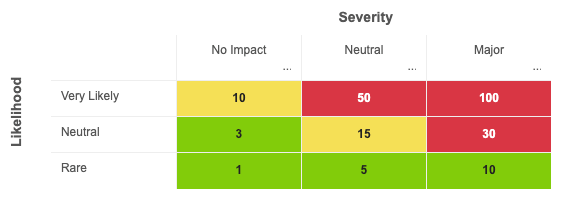
### Example: Quantitative Risk Matrix Visualization {#example-quantitative}
 ## Configuring Risk Management Object Actions {#actions}
The _Risk Study_ object lifecycle contains the _Copy Risk Study_ action. This action triggers Vault to clone the related _Risk Study_, _HAZOP Node_, _FMEA Process Step_, and _Risk Analysis_ records into a new set of records.
When users run the _Copy Risk Study_ action, Vault does not copy the following:
* System-managed fields.
* Fields if the _Do not copy this field in Copy Record_ configuration is selected.
* _HAZOP Node_ and _FMEA Process Step_ records if the _Allow Hierarchy Copy_ configuration is unselected.
* A _Risk Study_ record when more than 1,000 records are available to copy from the _Risk Study_ record.
You can add this action as a record action
on the _Risk Study_ object or as a user action
on the appropriate _Risk Study Lifecycle_ states, depending on your business needs.
## Configuring User Permissions {#permissions}
You must ensure users have the appropriate read and create permissions
to access the appropriate objects and object fields in addition to the permissions outlined below:
* To view the risk matrix visualization, users must have the following permissions:
* _Read_ permission on the _Occurrence_ (`occurrence__v`) object, including _Read_ permission on the _Row Order_ (`row_order__v`) field
* _Read_ permission on the _Risk Level_ (`risk_level__v`) object (for qualitative matrices only)
* _Read_ permission on the _Risk Matrix_ (`risk_matrix__v`) object
* _Read_ permission on the _Risk Matrix Setup_ (`risk_matrix_setup__v`) object, including _Read_ permission on the following fields:
* _Color_ (`risk_level_color_icon__v`)
* _Occurrence_ (`occurrence__v`)
* _Risk Level_ (`risk_level__v`) (for qualitative matrices only)
* _Risk Level Value_ (`risk_level_value__v`) (for quantitative matrices only)
* _Risk Matrix_ (`risk_matrix__v`)
* _Severity_ (`severity__v`)
* _Read_ permission on the _Severity_ (`severity__v`) object, including _Read_ permission on the _Column Order_ (`column_order__v`) field
* If your organization uses Dynamic Access Control
for record-level access control, or Atomic Security
to grant access depending on a record’s lifecycle state and roles, you must also grant the relevant users view access to the objects and fields listed above.
[1]: #risk-matrix-visual
[2]: #actions
[3]: #permissions
## Configuring Risk Management Object Actions {#actions}
The _Risk Study_ object lifecycle contains the _Copy Risk Study_ action. This action triggers Vault to clone the related _Risk Study_, _HAZOP Node_, _FMEA Process Step_, and _Risk Analysis_ records into a new set of records.
When users run the _Copy Risk Study_ action, Vault does not copy the following:
* System-managed fields.
* Fields if the _Do not copy this field in Copy Record_ configuration is selected.
* _HAZOP Node_ and _FMEA Process Step_ records if the _Allow Hierarchy Copy_ configuration is unselected.
* A _Risk Study_ record when more than 1,000 records are available to copy from the _Risk Study_ record.
You can add this action as a record action
on the _Risk Study_ object or as a user action
on the appropriate _Risk Study Lifecycle_ states, depending on your business needs.
## Configuring User Permissions {#permissions}
You must ensure users have the appropriate read and create permissions
to access the appropriate objects and object fields in addition to the permissions outlined below:
* To view the risk matrix visualization, users must have the following permissions:
* _Read_ permission on the _Occurrence_ (`occurrence__v`) object, including _Read_ permission on the _Row Order_ (`row_order__v`) field
* _Read_ permission on the _Risk Level_ (`risk_level__v`) object (for qualitative matrices only)
* _Read_ permission on the _Risk Matrix_ (`risk_matrix__v`) object
* _Read_ permission on the _Risk Matrix Setup_ (`risk_matrix_setup__v`) object, including _Read_ permission on the following fields:
* _Color_ (`risk_level_color_icon__v`)
* _Occurrence_ (`occurrence__v`)
* _Risk Level_ (`risk_level__v`) (for qualitative matrices only)
* _Risk Level Value_ (`risk_level_value__v`) (for quantitative matrices only)
* _Risk Matrix_ (`risk_matrix__v`)
* _Severity_ (`severity__v`)
* _Read_ permission on the _Severity_ (`severity__v`) object, including _Read_ permission on the _Column Order_ (`column_order__v`) field
* If your organization uses Dynamic Access Control
for record-level access control, or Atomic Security
to grant access depending on a record’s lifecycle state and roles, you must also grant the relevant users view access to the objects and fields listed above.
[1]: #risk-matrix-visual
[2]: #actions
[3]: #permissions