# About the Learner Homepage (Training Management)
QualityOne Vaults provide Learners with a one-stop homepage to work with training assignments. On this page, you can view your overall training status and complete your training assignments. If enabled by your Admin, you can view the Learner Homepage with a [mobile-optimized interface][1] on mobile devices.
Depending on your Admin's configuration, object, field, and section labels may appear differently than the labels mentioned in this article.
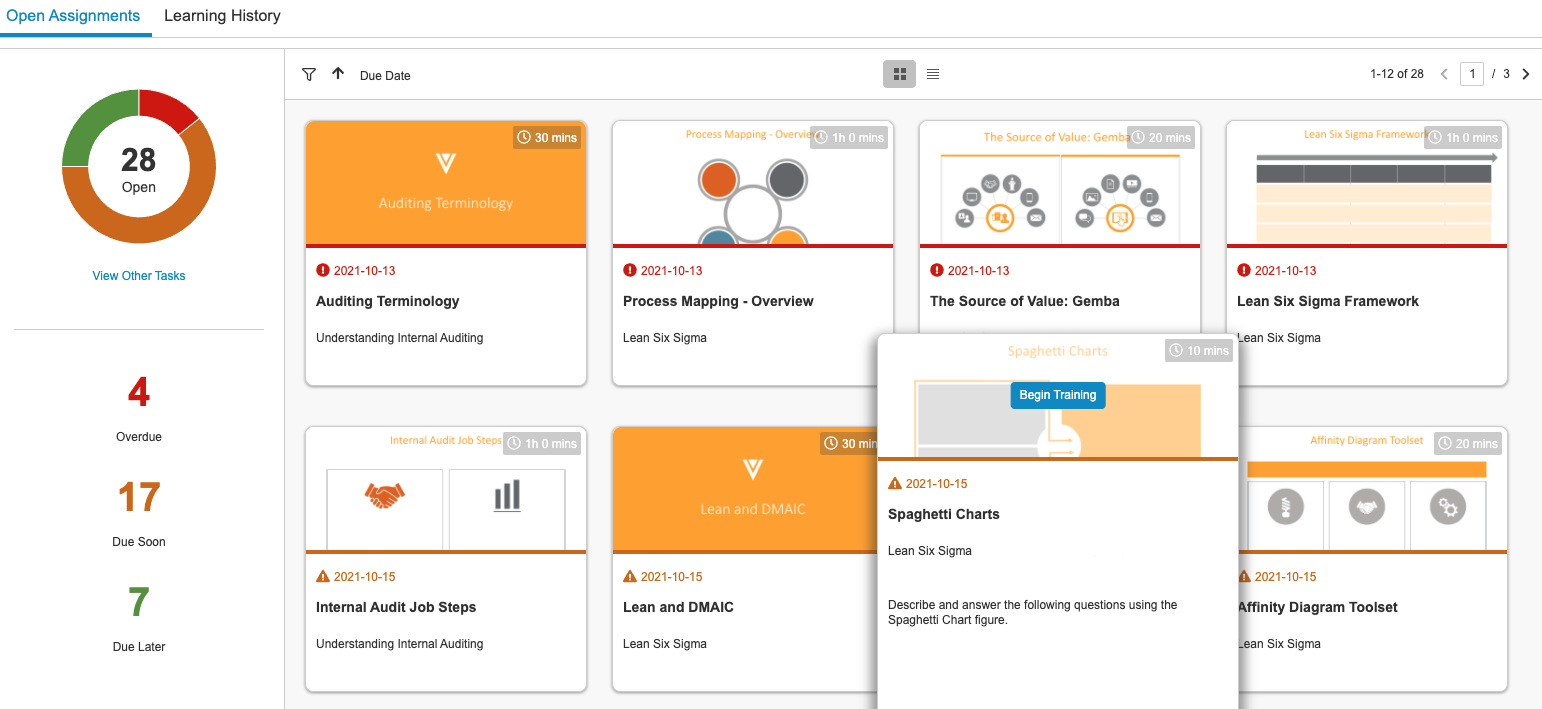 ## Open Assignments {#open_assignments}
The main panel of the Learner Homepage displays your open _Training Assignments_ in either a card view or list view. You can switch between these views using the navigation buttons above the assignment panel:
* **Card View** (
## Open Assignments {#open_assignments}
The main panel of the Learner Homepage displays your open _Training Assignments_ in either a card view or list view. You can switch between these views using the navigation buttons above the assignment panel:
* **Card View** ( ): In this view, Vault displays training assignments as cards with relevant information, such as the assignment title, due date, approximate time required, and the type of training. Hover over an assignment card to view additional information such as the source of the assignment and a list of the included documents.
* **List View** (
): In this view, Vault displays training assignments as cards with relevant information, such as the assignment title, due date, approximate time required, and the type of training. Hover over an assignment card to view additional information such as the source of the assignment and a list of the included documents.
* **List View** ( ): The list view displays assignments and associated data in list rows. Click an assignment name in this view to begin the training assignment. Click the column headers to sort the display.
### Status Panel {#status-panel}
The left panel shows the status of your open training assignments. Click **Overdue**, **Due Soon**, or **Due Later** to display only those items in the assignment area. You can also click the corresponding sections of the circle graph for the same function. Assignments are **Due Soon** if their due date is less than five (5) days from the current date. If you have tasks in the Vault that are not training assignments, you can click **View Other Tasks** to navigate to your _My Tasks_ view.
### Sorting {#sorting}
In the card view, you can change your sort method using the controls at the top of the panel. Sorting options include _Due Date_, _Assignment Date_, or _Estimated Time to Completion_. Click the arrow to sort in an ascending or descending pattern.
### Filtering {#filtering}
Click the **filter** (
): The list view displays assignments and associated data in list rows. Click an assignment name in this view to begin the training assignment. Click the column headers to sort the display.
### Status Panel {#status-panel}
The left panel shows the status of your open training assignments. Click **Overdue**, **Due Soon**, or **Due Later** to display only those items in the assignment area. You can also click the corresponding sections of the circle graph for the same function. Assignments are **Due Soon** if their due date is less than five (5) days from the current date. If you have tasks in the Vault that are not training assignments, you can click **View Other Tasks** to navigate to your _My Tasks_ view.
### Sorting {#sorting}
In the card view, you can change your sort method using the controls at the top of the panel. Sorting options include _Due Date_, _Assignment Date_, or _Estimated Time to Completion_. Click the arrow to sort in an ascending or descending pattern.
### Filtering {#filtering}
Click the **filter** ( ) icon to add more advanced filters to your view. You can add filters for training assignment metadata such as _Assigned Date_, _Creation Source_, _Curriculum_, _Due Date_, _Learner Role_, or _Training Assignment Type_. Click the **plus** (**+**) icon to the right of the filter row to add additional filters. Click **Apply** to save and view the filtered assignments. Click **Clear** to remove all filters.
## Learning History {#learning-history}
The **Learning History** view lists data for all previously completed assignments. Here you can easily check when you can expect to be reassigned any recurring training, what _Learner Role_ or _Curriculum_ each training assignment was associated with, and your assigned and completed dates for each assignment.
[1]: #learning-history
) icon to add more advanced filters to your view. You can add filters for training assignment metadata such as _Assigned Date_, _Creation Source_, _Curriculum_, _Due Date_, _Learner Role_, or _Training Assignment Type_. Click the **plus** (**+**) icon to the right of the filter row to add additional filters. Click **Apply** to save and view the filtered assignments. Click **Clear** to remove all filters.
## Learning History {#learning-history}
The **Learning History** view lists data for all previously completed assignments. Here you can easily check when you can expect to be reassigned any recurring training, what _Learner Role_ or _Curriculum_ each training assignment was associated with, and your assigned and completed dates for each assignment.
[1]: #learning-history